🔧 Server Settings
What you can do on this screen
Server Settings is where you manage the currently selected Pi-hole server itself. Unlike App Settings, everything here affects server behavior and data.
Use this screen to:
- Confirm server identity, version, and health
- Maintain adlists, groups, and client assignments
- Perform advanced maintenance and network-related actions
Most tools on this screen are designed around the Pi-hole v6 API.
Server Info
Server Info shows detailed information about the currently connected Pi-hole server. Use this screen to confirm that the app is connected to the correct device and to check the server’s current state.
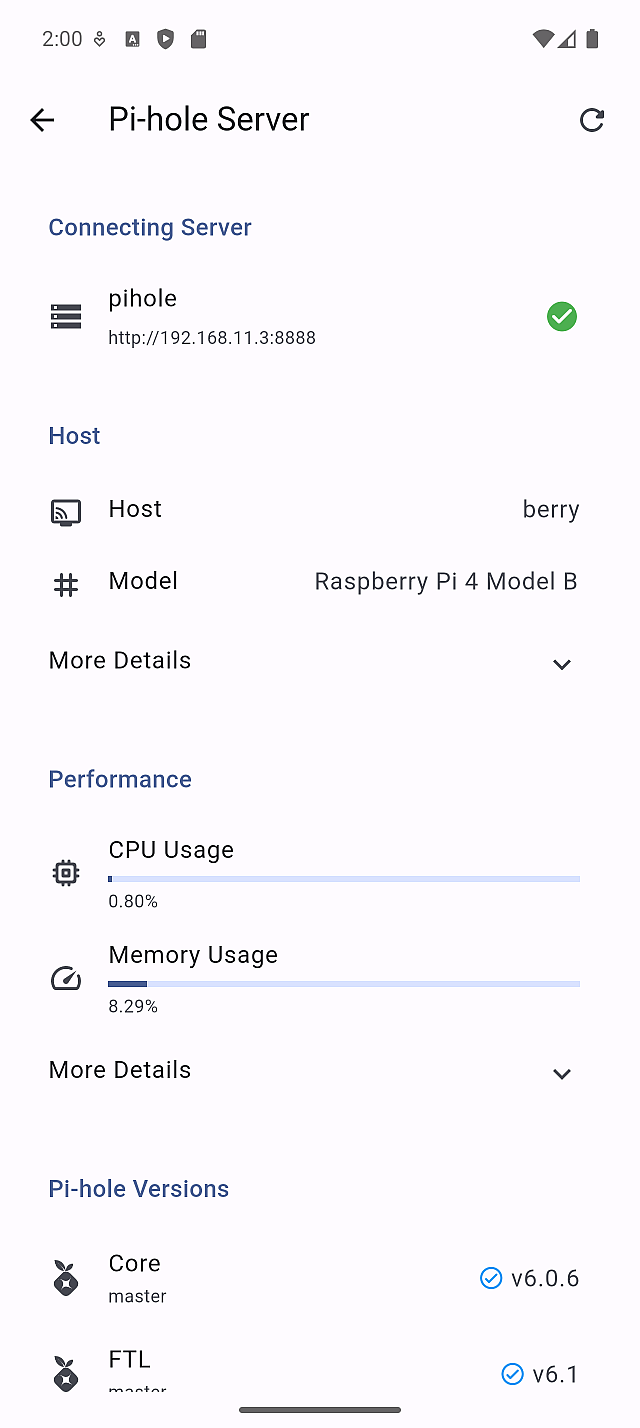
On this screen, you can confirm:
-
Server identity
- Server name
- Hostname
- Hardware model (for example, Raspberry Pi model)
-
Connection status
- Whether the server is currently reachable
- Which server is selected as active
-
Performance
- Current CPU usage
- Current memory (RAM) usage These values help you judge whether the server is under load.
-
Pi-hole versions
- Core version
- FTL version Use these to confirm feature availability and compatibility (for example, v5 vs v6 differences).
Scroll down to reveal additional sections when you need more detail, such as extended system or environment information.
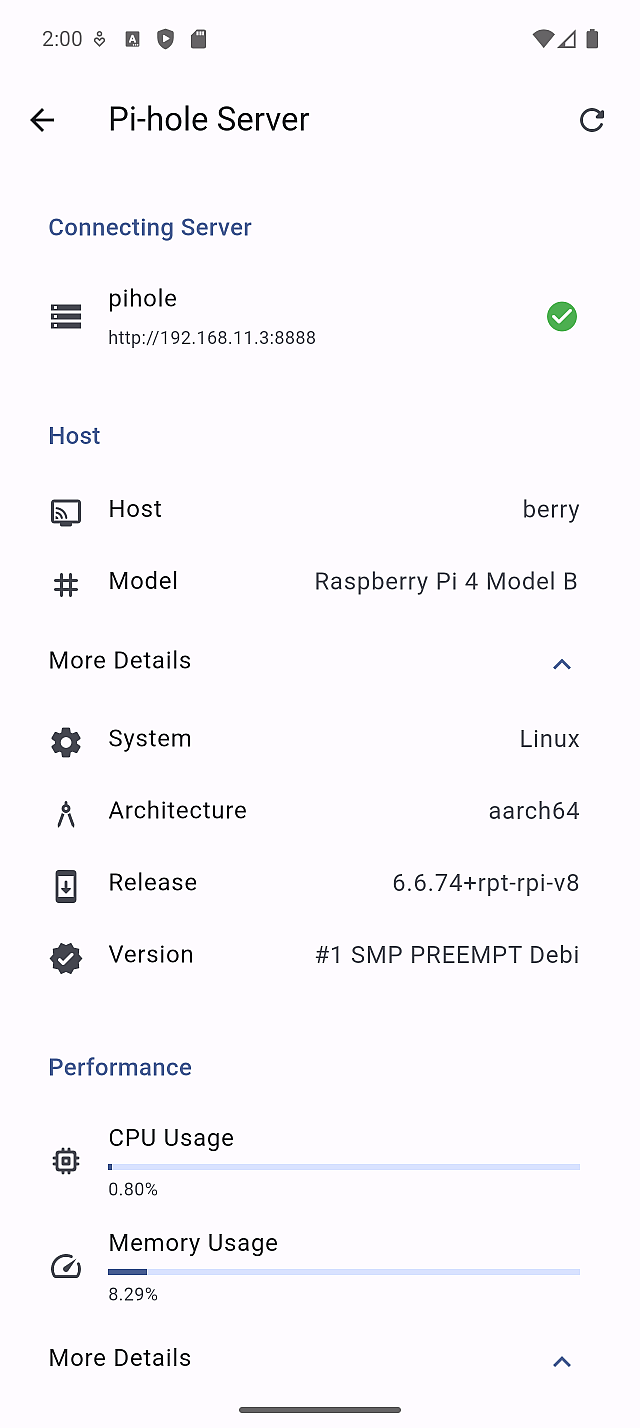
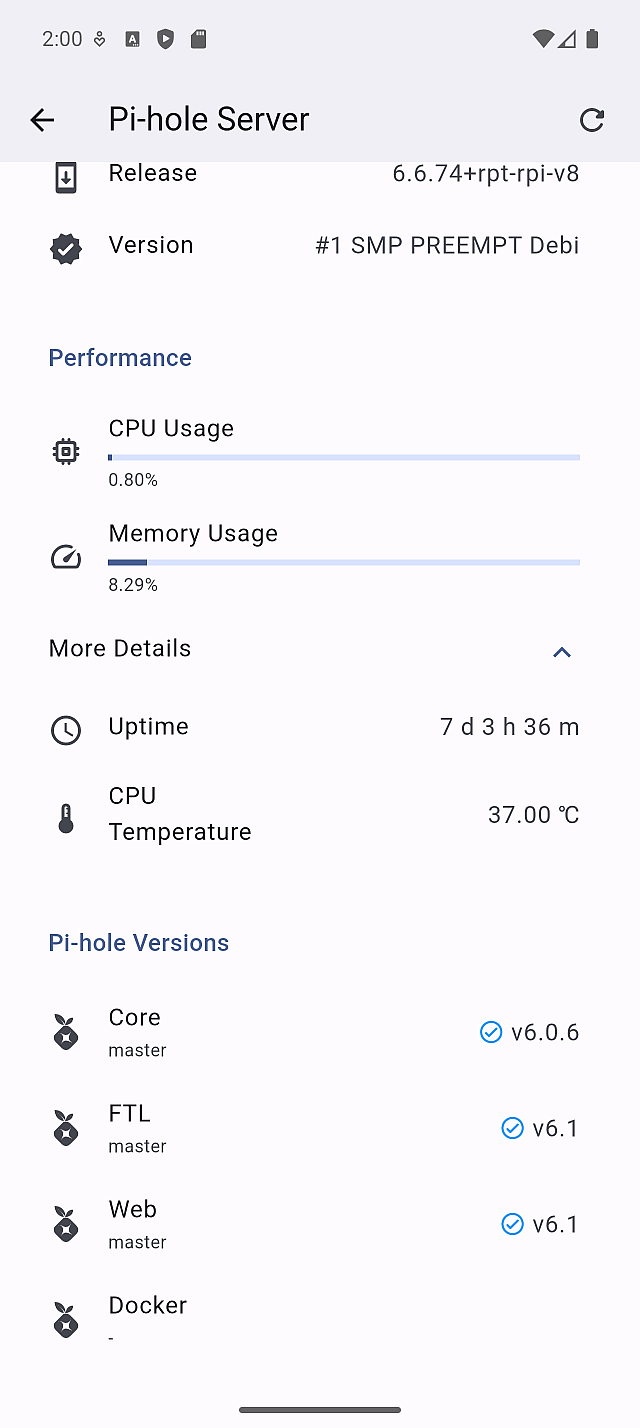
Always check Server Info before making changes in Adlists, Groups & Clients, or Advanced Setup, to ensure you are operating on the intended Pi-hole server.
Adlists
Adlists control which subscription lists Pi-hole uses to build its filtering database (gravity). In Pi-hole v6, this includes both allowlist and blocklist sources.
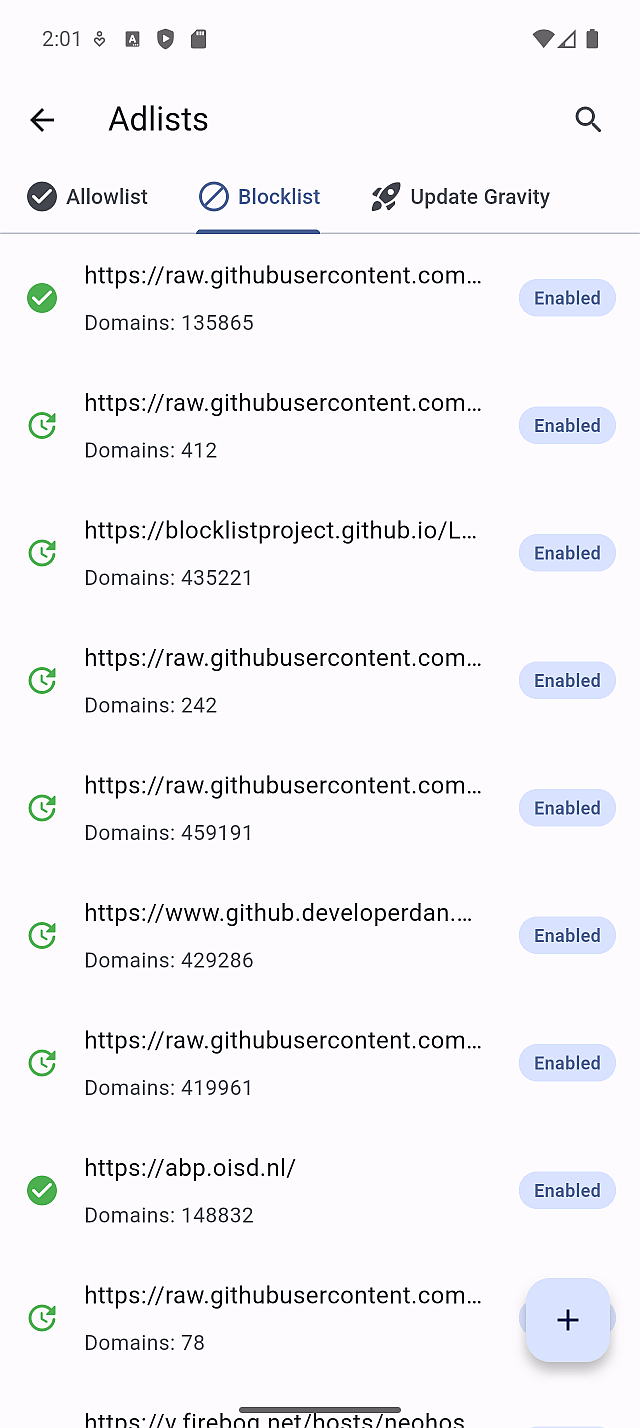
Add a list
Use Add to register a new subscription URL for the currently selected tab.
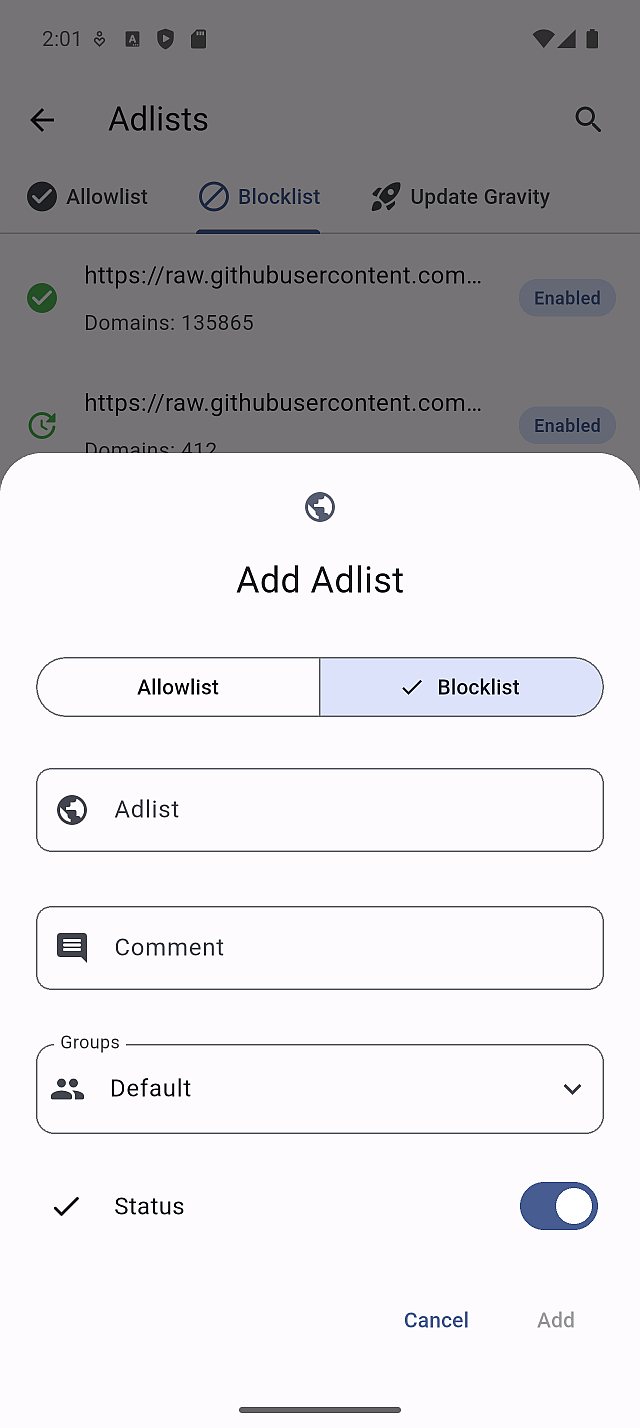
Only add lists from trusted sources. Keep new lists enabled only after confirming they behave as expected.
Review and manage lists
Tap a list to review its status and details.
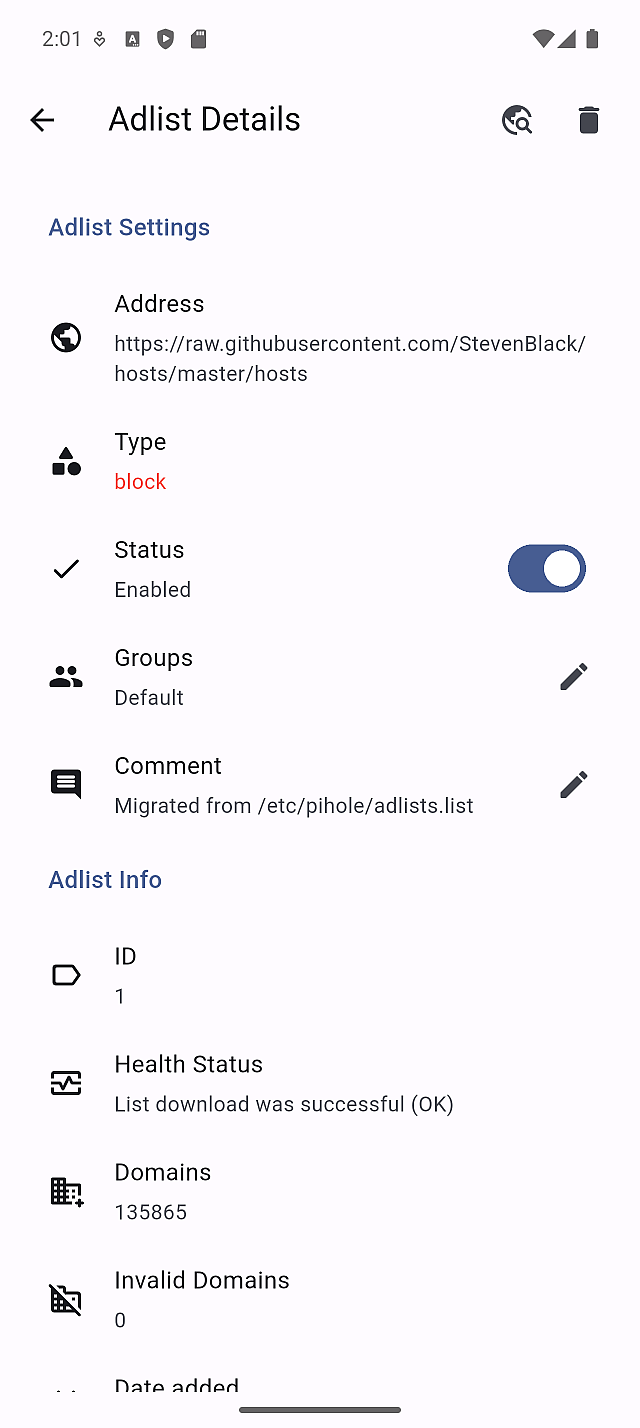
Disable a list to pause its effect without losing configuration. Delete a list only when you are sure it is no longer needed.
Update Gravity
After adding or editing lists, use Update Gravity to rebuild the blocking database.
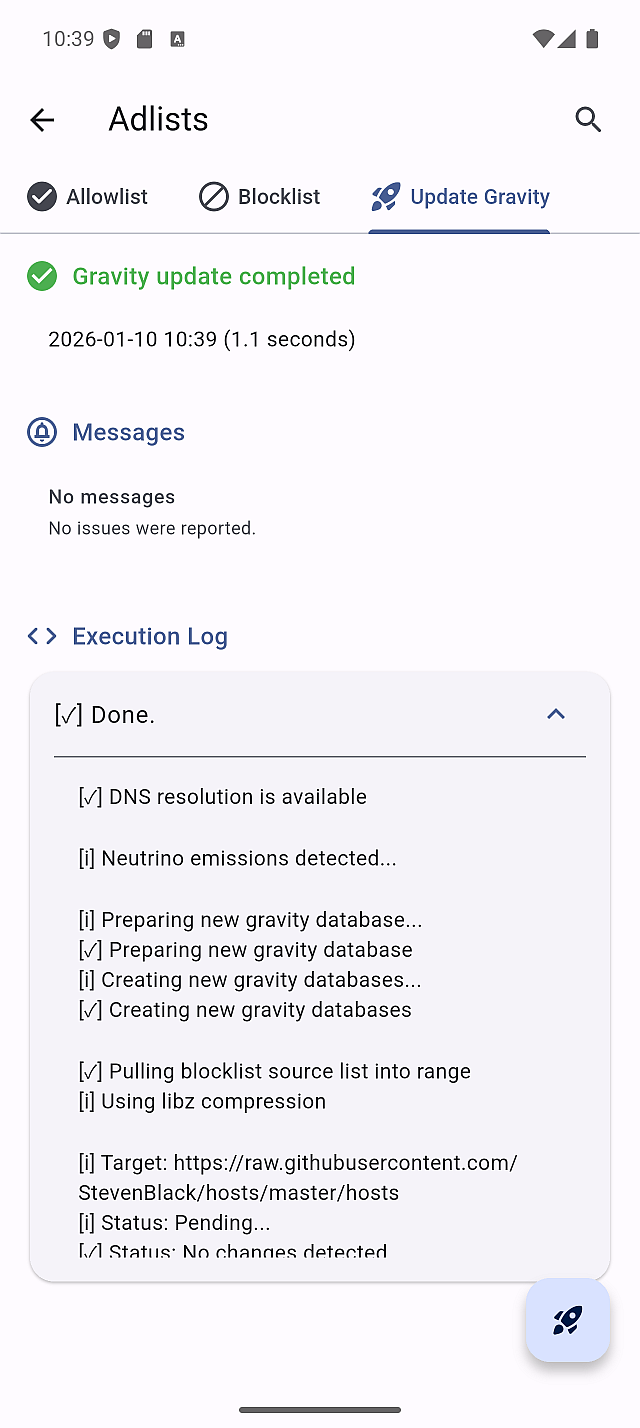
This operation refreshes Pi-hole’s filtering database and may take a short time.
Groups & Clients
Groups and Clients let you control which rules apply to which devices. This is a Pi-hole v6 feature in the app.
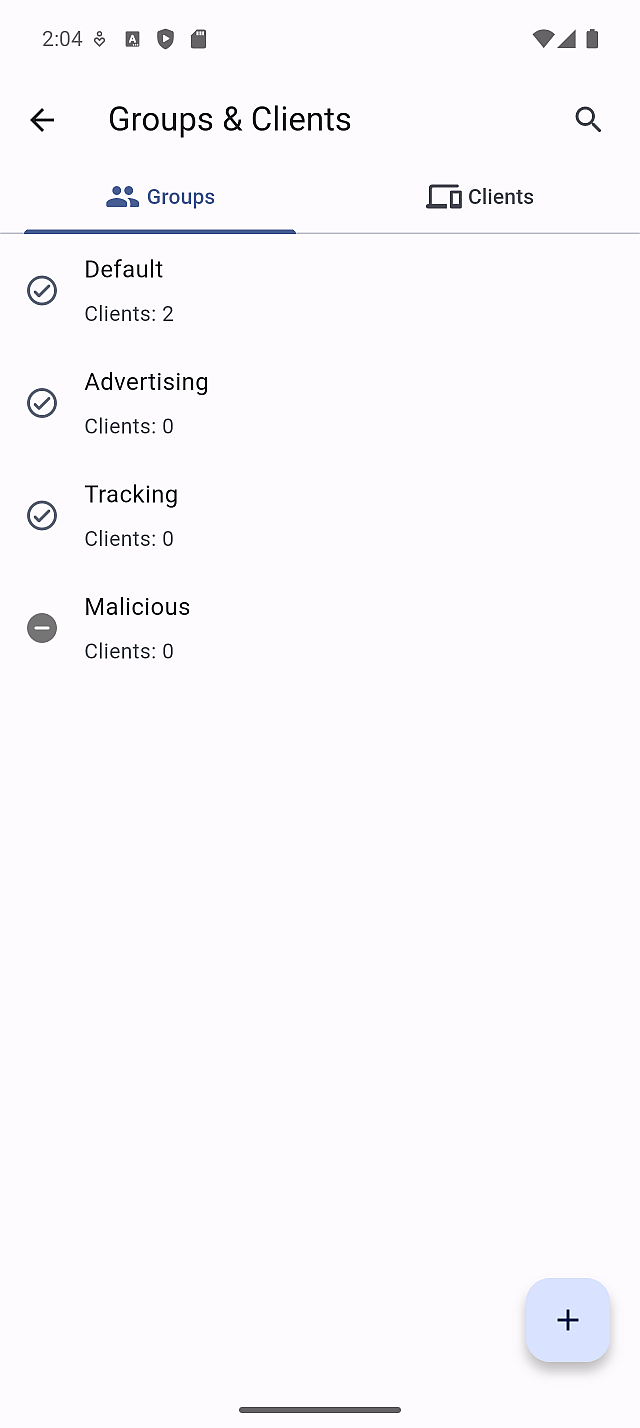
Groups
Groups define policy sets that can be assigned to clients.
Tap a group to edit its name or configuration.
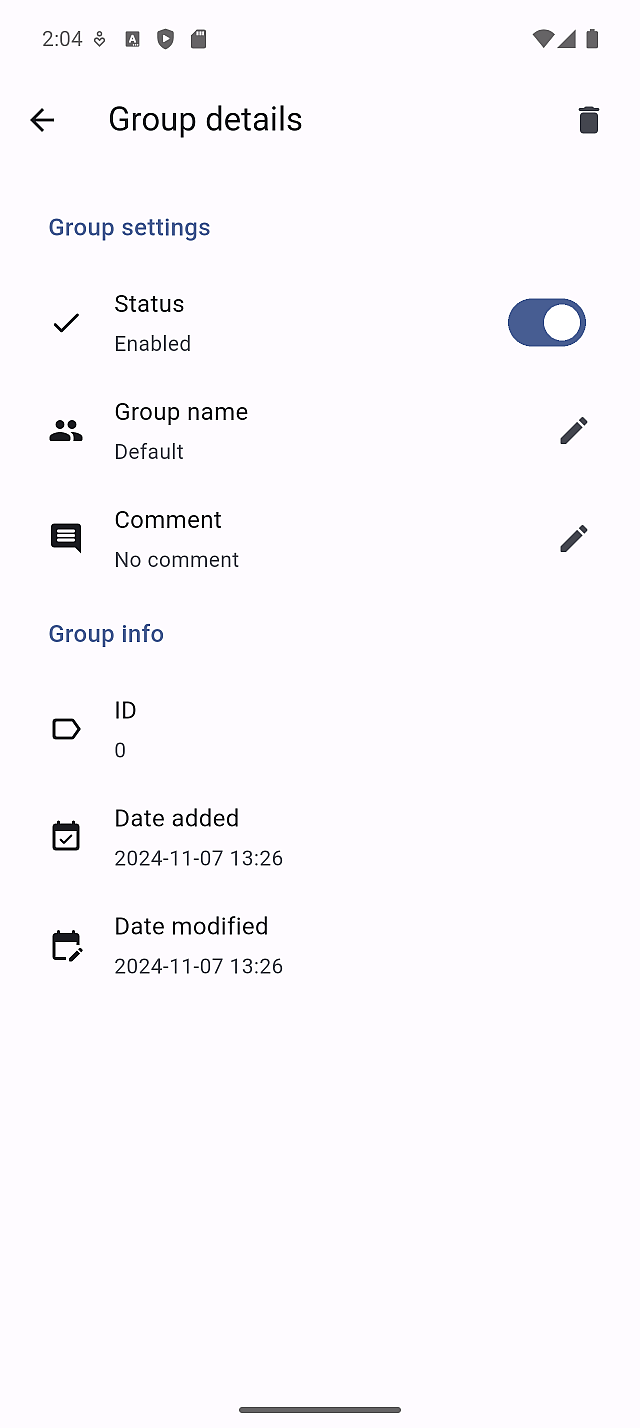
Use Add Group to create a new group.
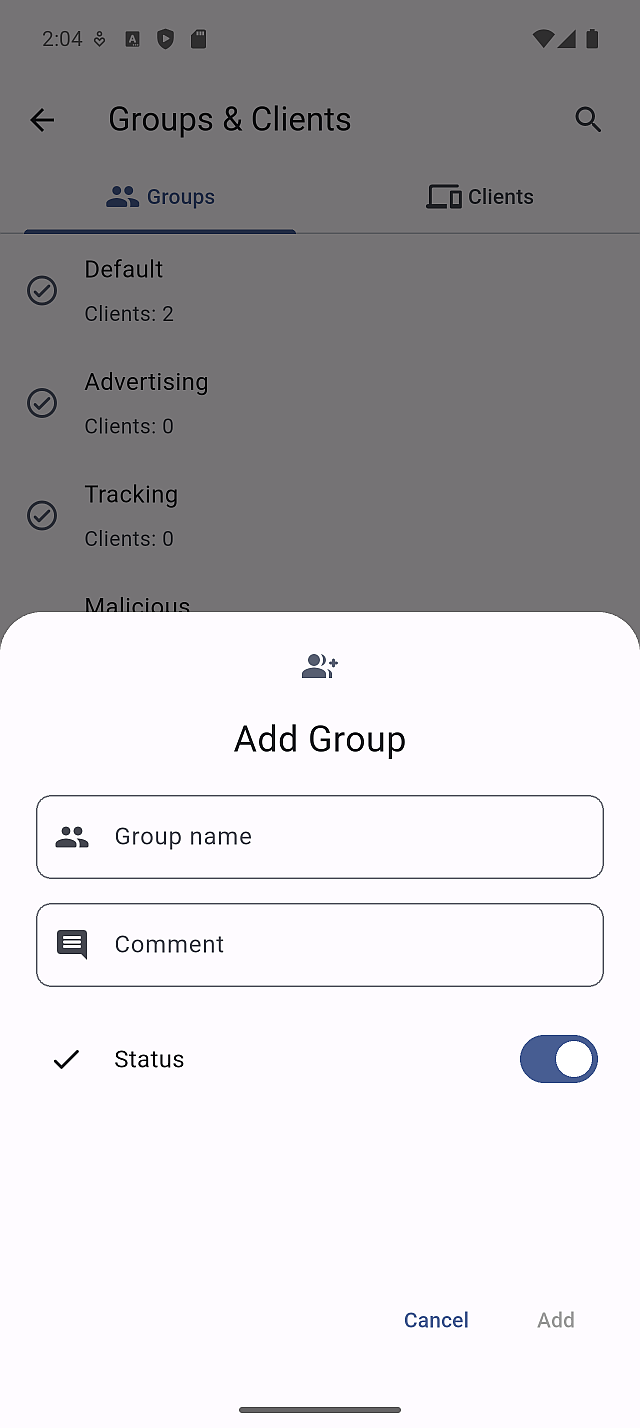
Only create groups you intend to use, to keep policy management clear.
Clients
Switch to the Clients tab to view devices known to the server.
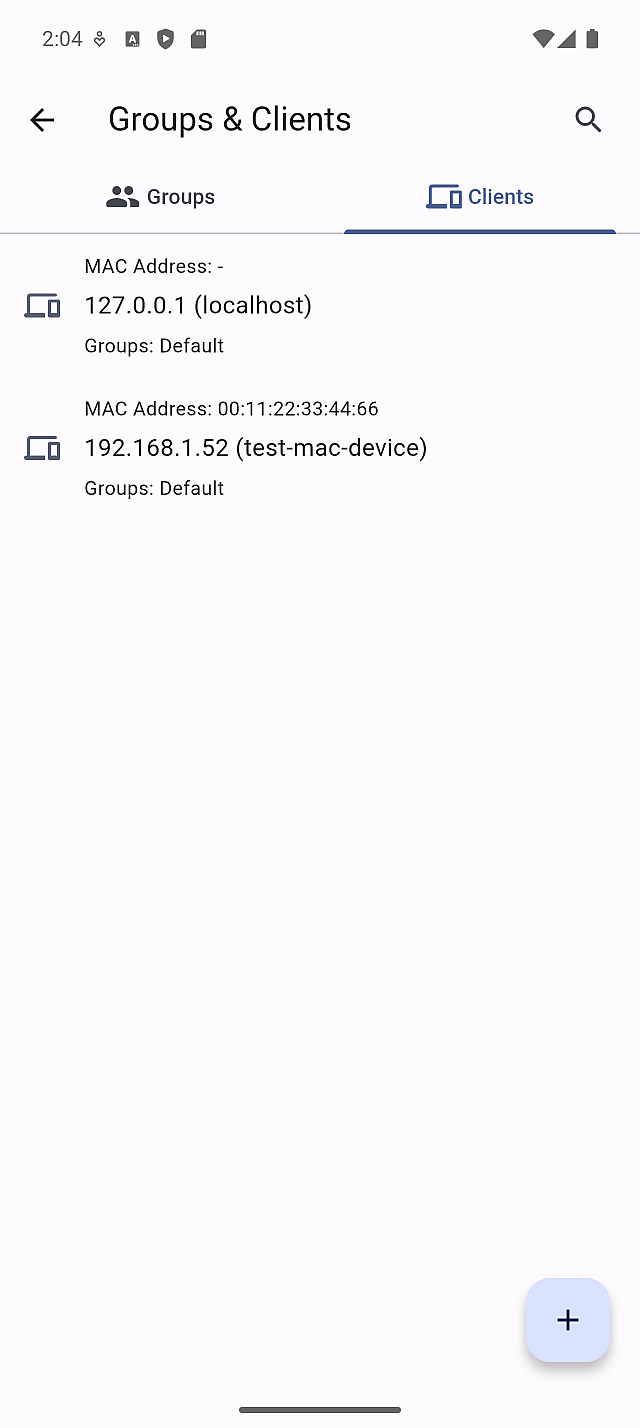
Tap a client to review its identity and group assignment.
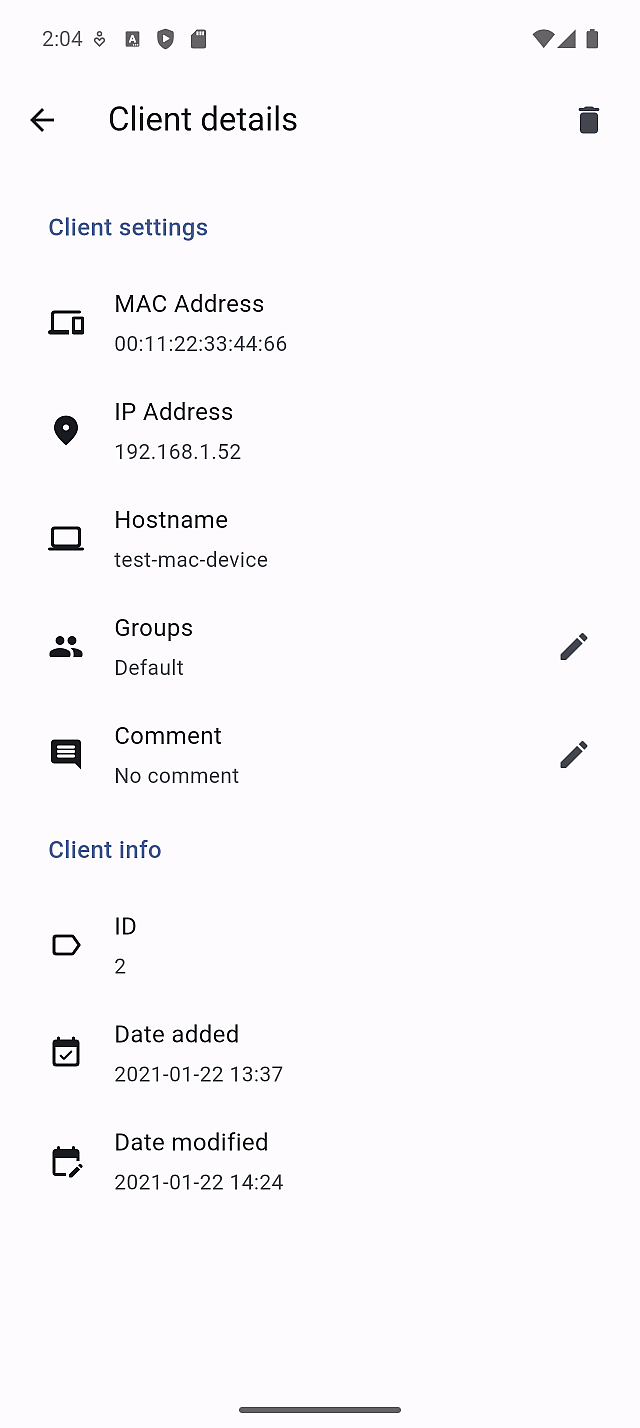
Use Add Clients to manually register a device by IP, MAC, or name.
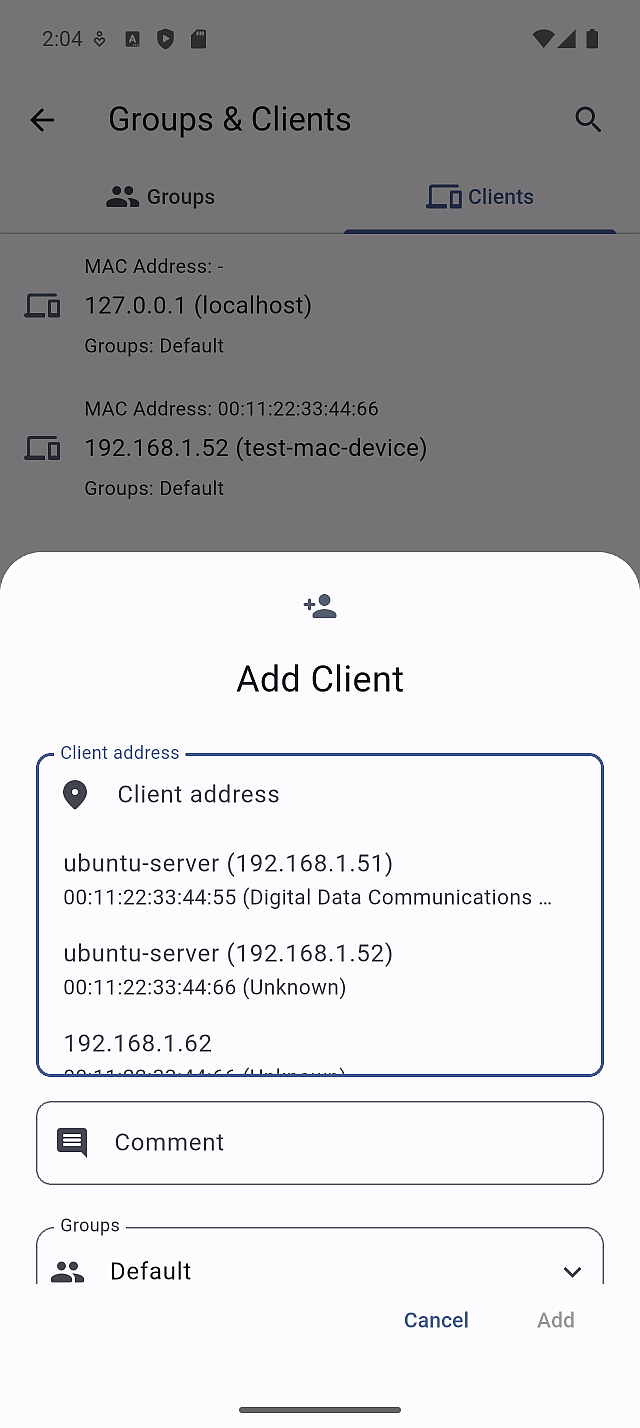
Always confirm the device identity before assigning or changing groups.
Advanced setup
Advanced Setup exposes server-level maintenance and network tools. These actions directly affect Pi-hole behavior.
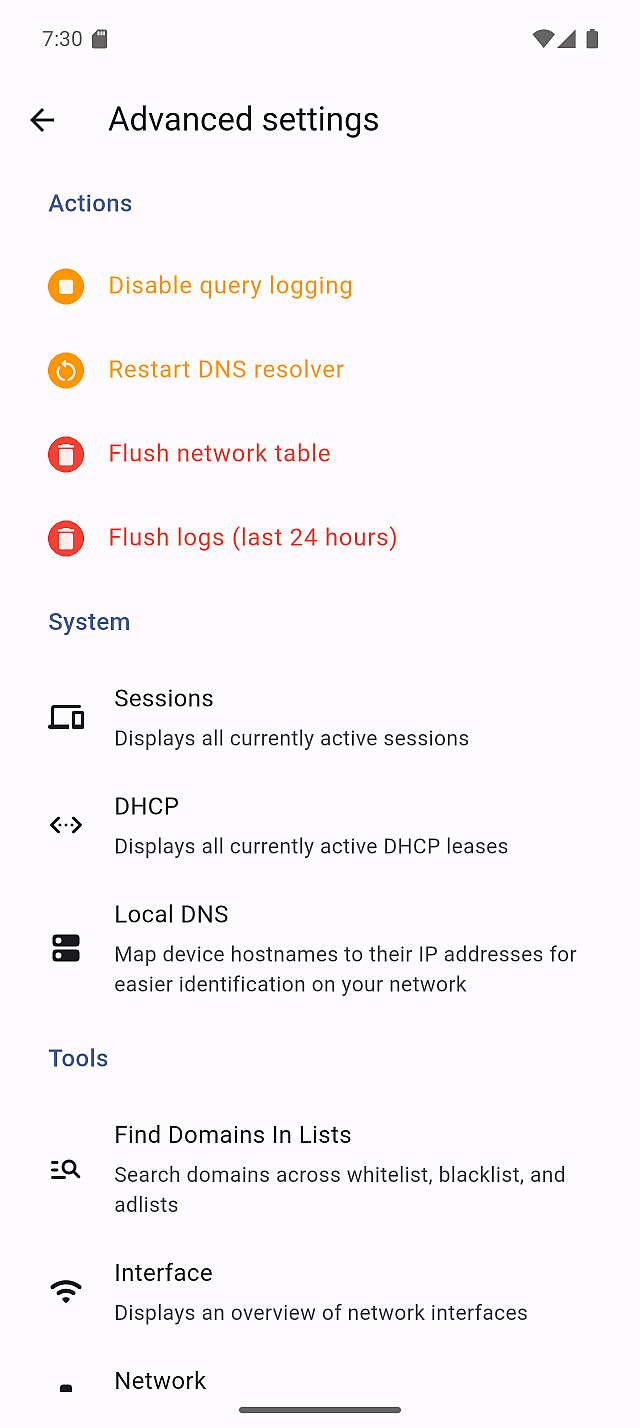
Actions
-
Disable / Enable query logging Temporarily stop logging DNS queries. Use only for short troubleshooting sessions.
-
Restart DNS resolver Restart Pi-hole’s DNS service. This briefly interrupts DNS resolution.
-
Flush network table Clear and rebuild device mappings. Useful after IP or hostname changes.
-
Flush logs (last 24 hours) Remove recent query history. Avoid doing this if logs are still needed for analysis.
Sessions
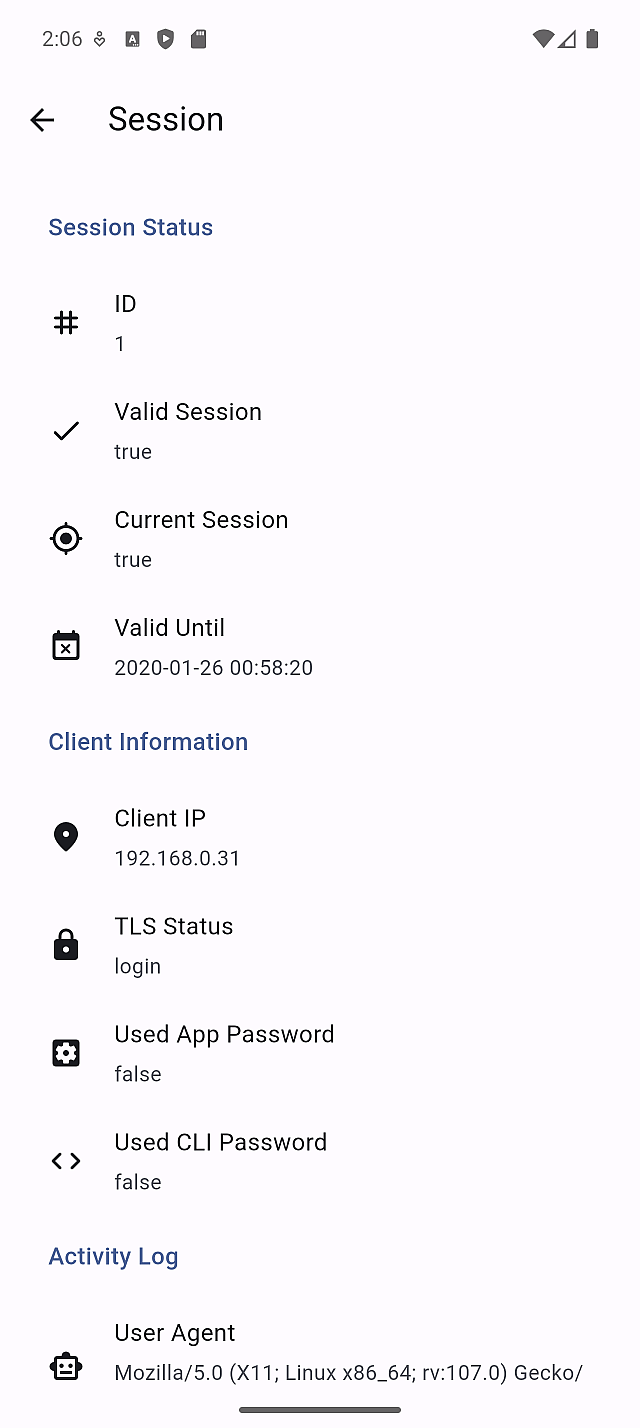
Sessions show active and recent DNS usage.
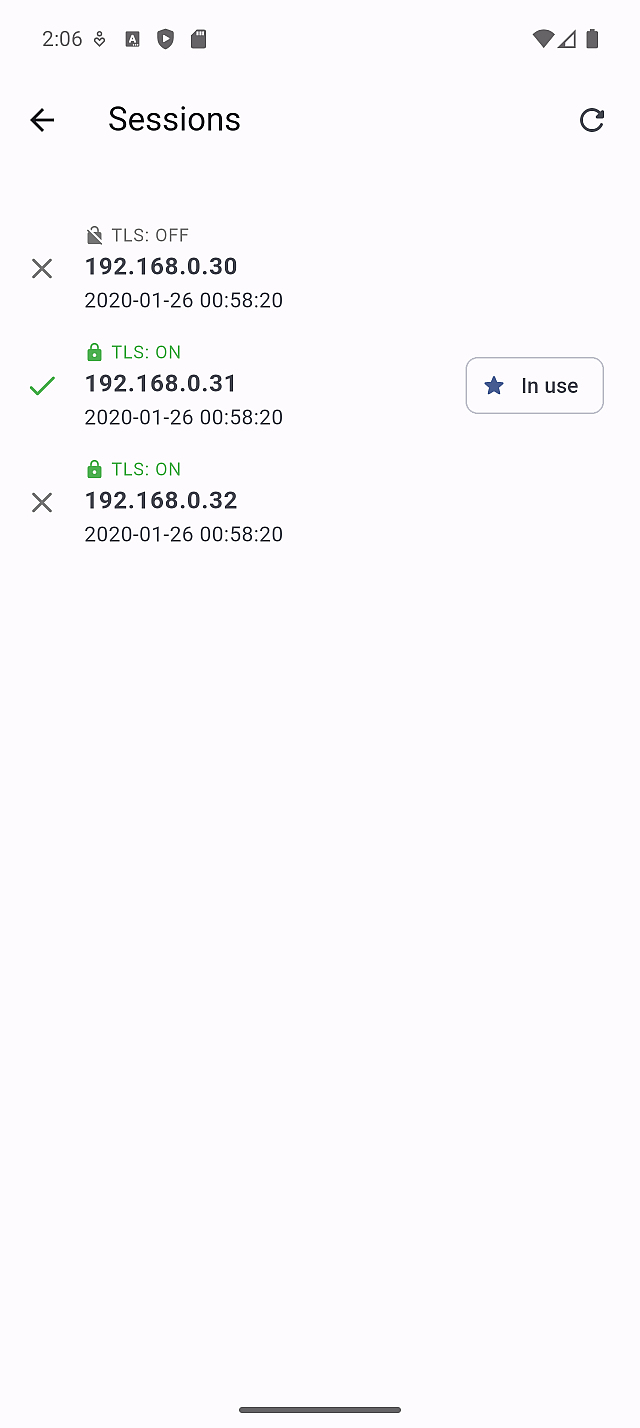
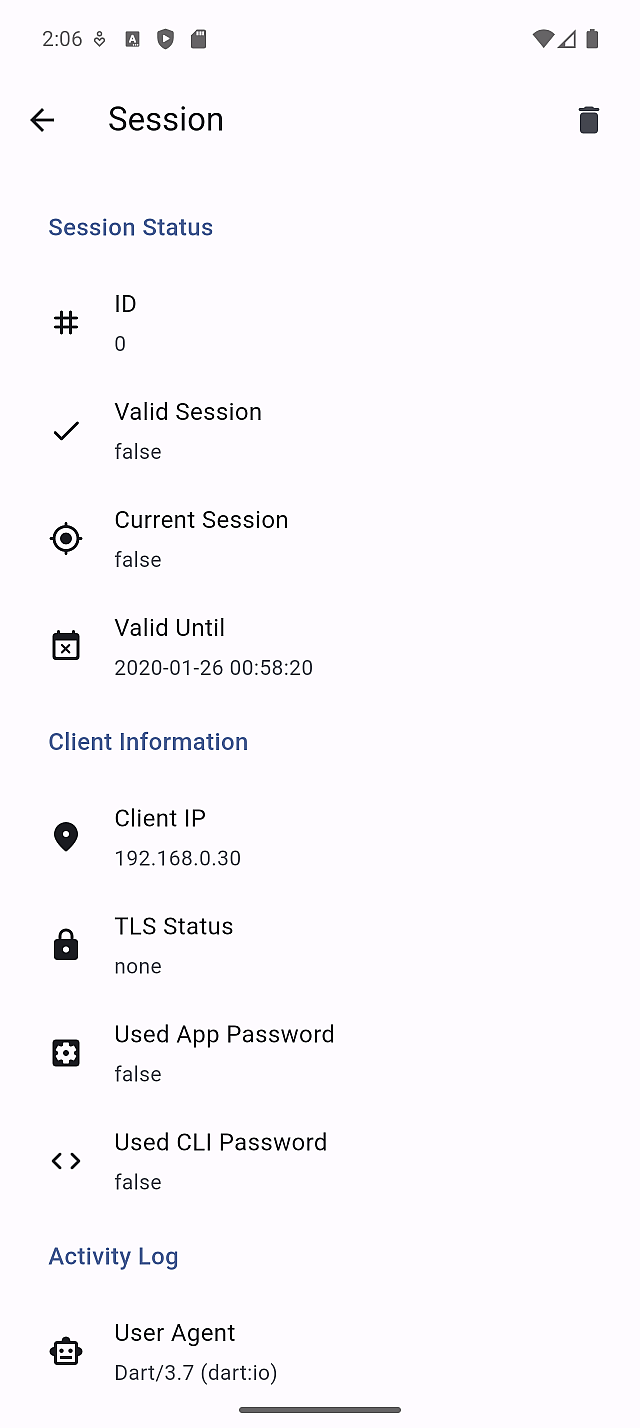
Tap a session to view details. If a session is currently in use, editing options may be limited.
DHCP
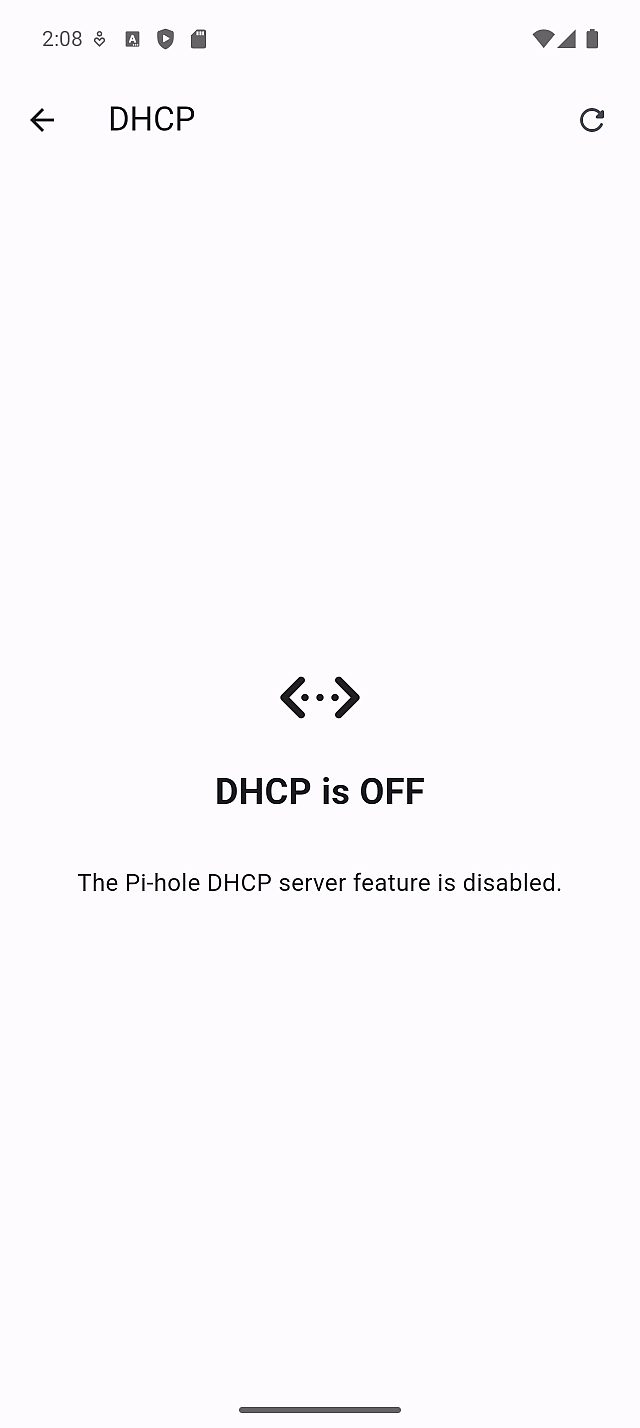
Use DHCP only if Pi-hole is acting as your DHCP server.

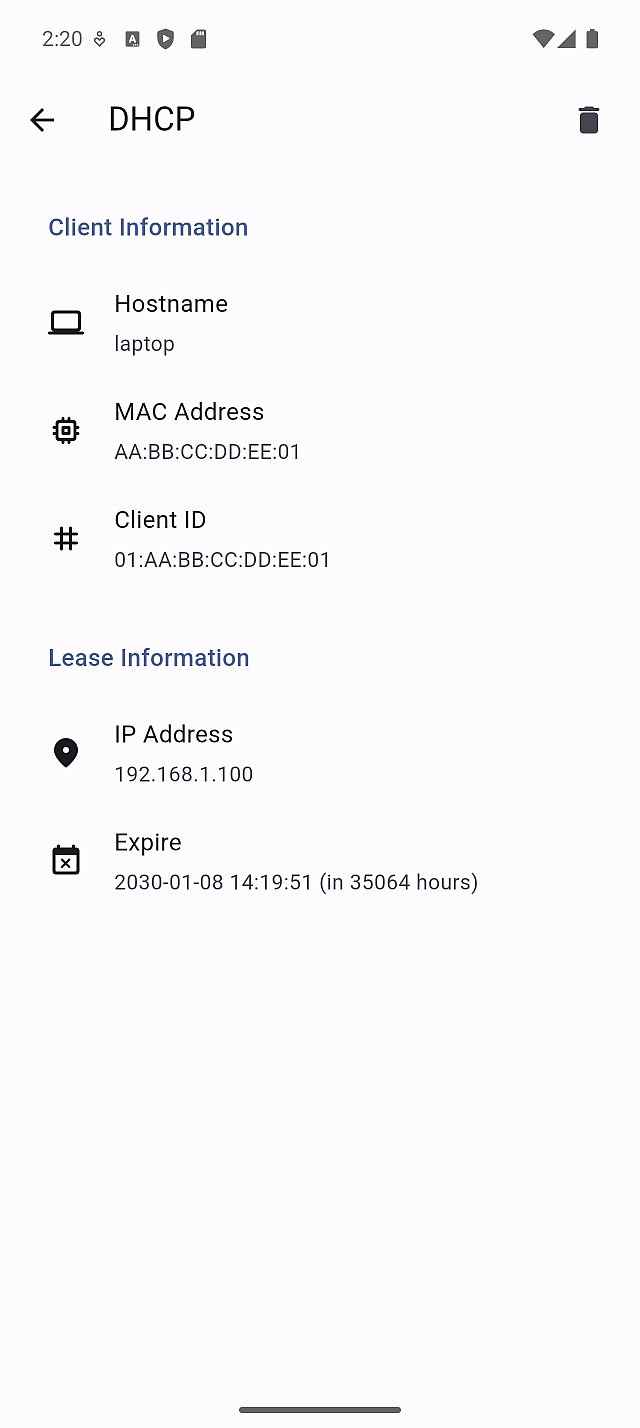
Tap a lease to review details and confirm IP assignments.
Keep DHCP disabled if another device already manages leases.
Local DNS
Local DNS allows you to define custom hostnames inside your network.
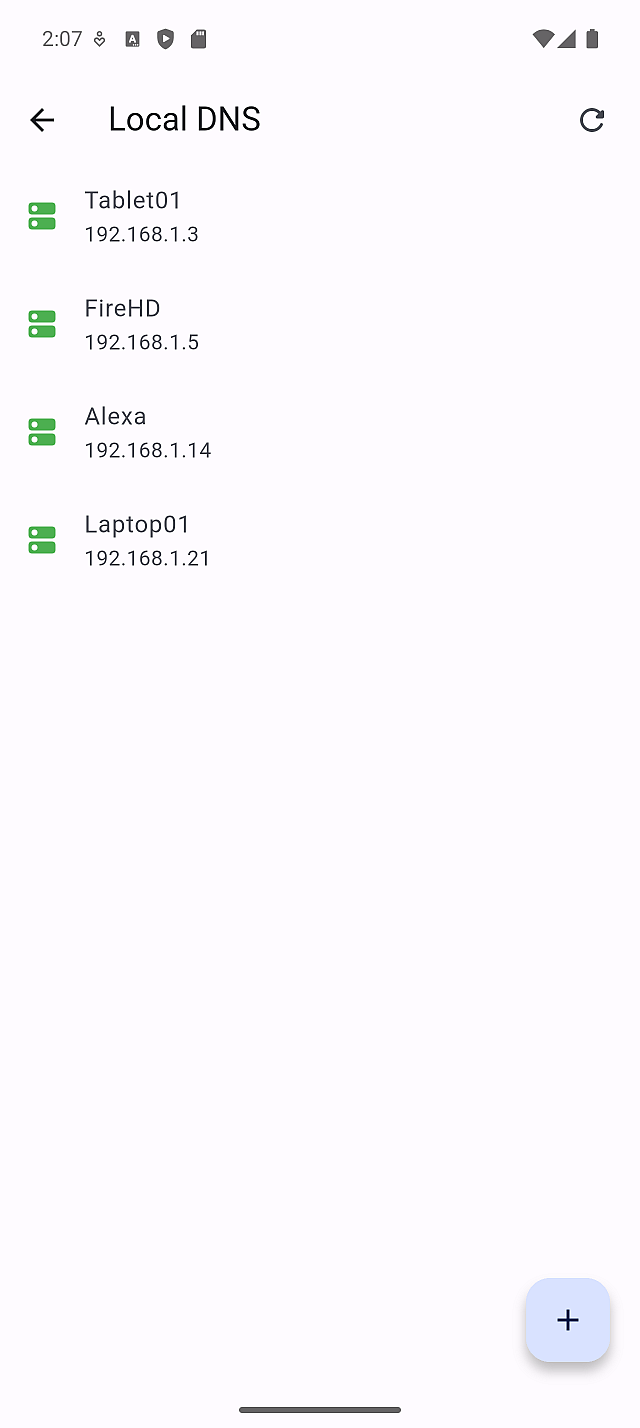
Add entries when devices need stable, human-readable names.
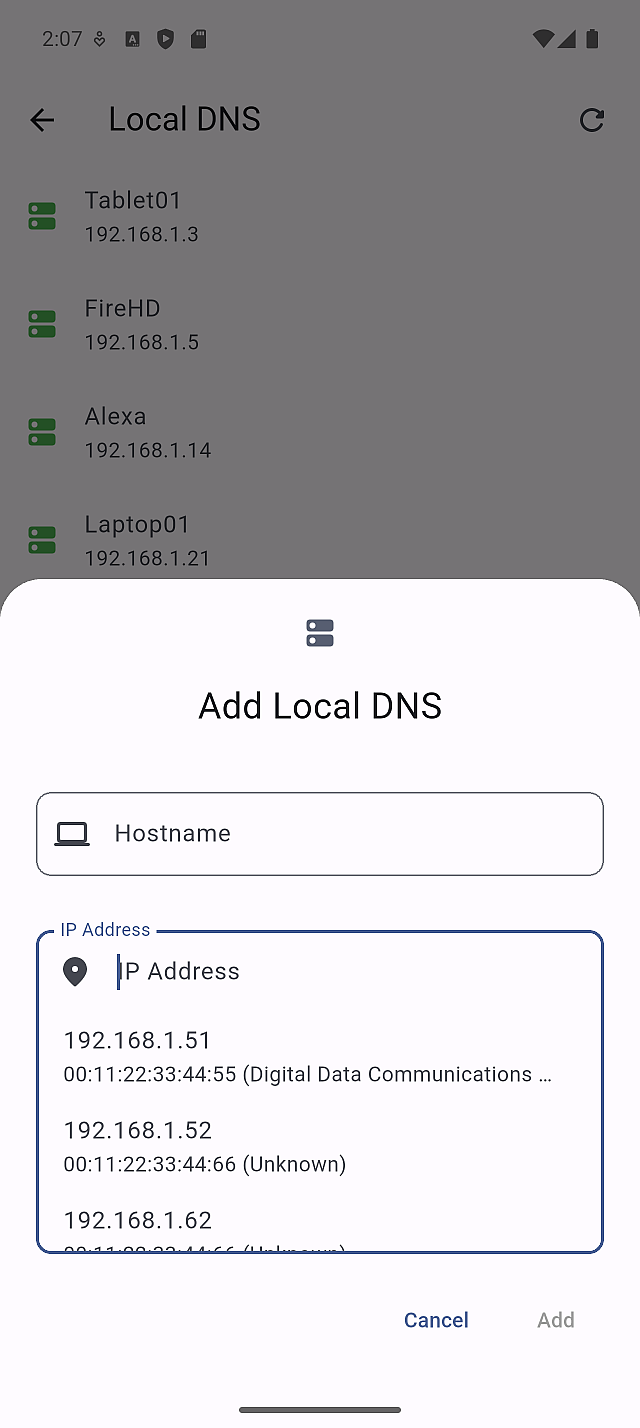
Tap an entry to review or edit it.
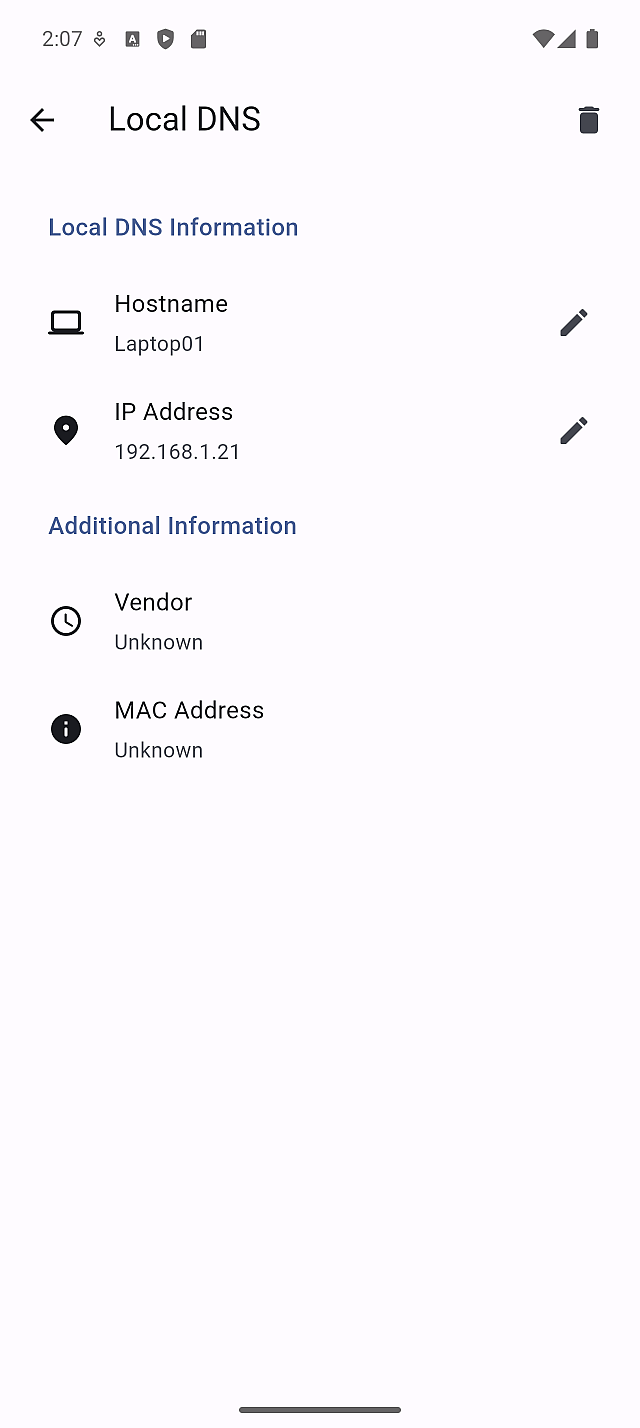
Avoid duplicate entries to prevent resolution conflicts.
Find Domains In Lists
Find Domains In Lists lets you check where a domain is defined in Pi-hole.
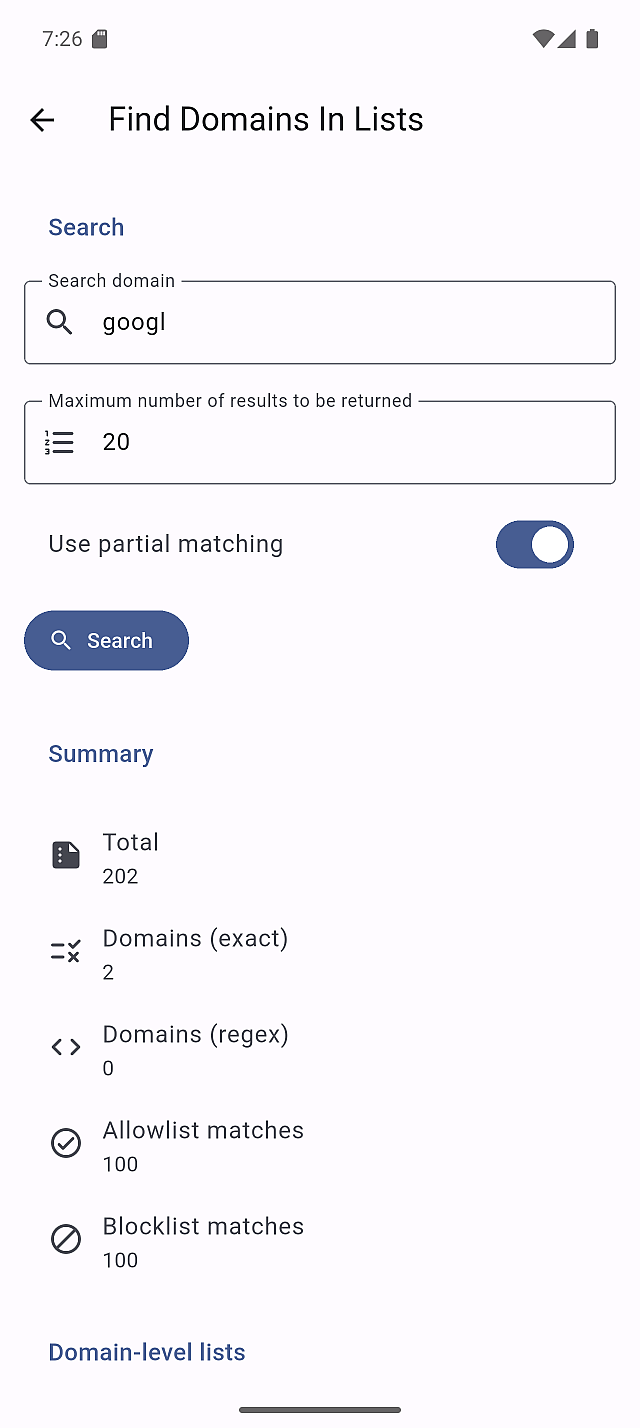
It searches across:
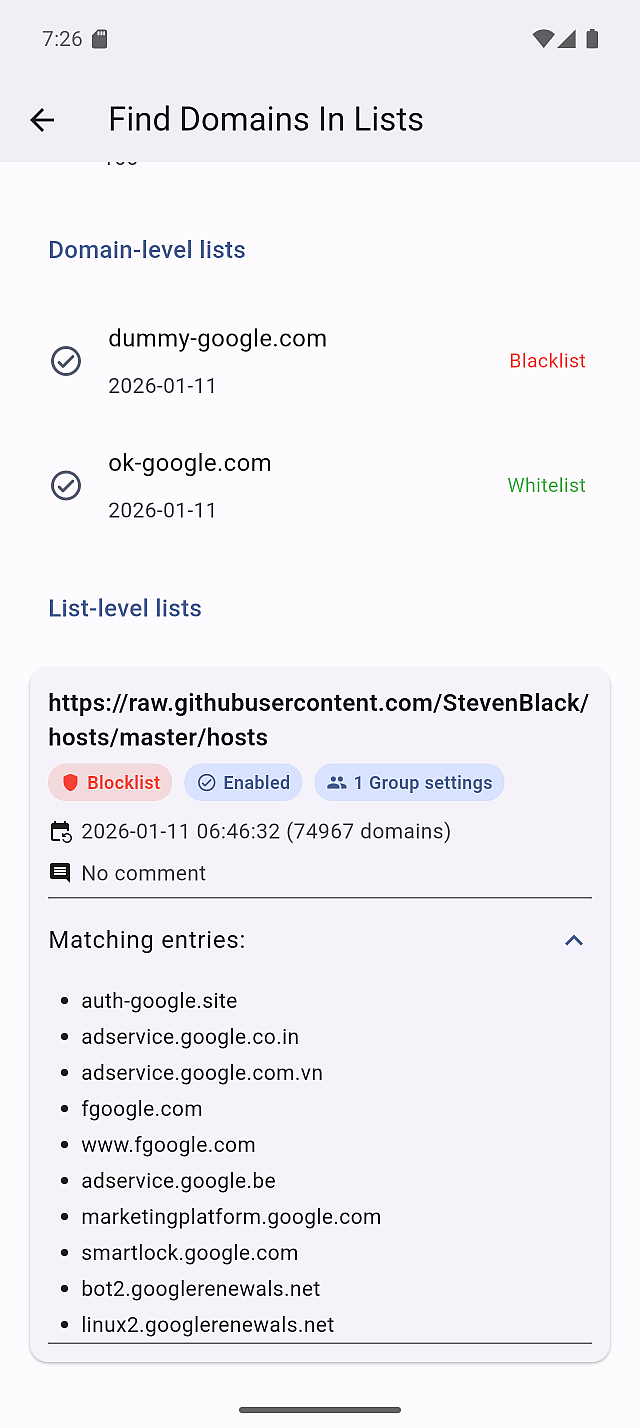
- Domain-level lists (Whitelist / Blacklist: exact + regex)
- List-level lists (Allowlist / Blocklist subscriptions: adlists)
How to use
- Enter a domain (example:
doubleclick.net) - (Optional) Toggle Use partial matching
- On (default): partial matches
- Off: exact matches only
- Set the max results (default:
20) - Tap Search (it does not search while typing)
Results and navigation
Results are split into sections.
- Domain-level lists: tap an entry to open Domain detail
- List-level lists: results are grouped by adlist; tap a card to open Adlist detail (Matching entries can be expanded; the list is scrollable)
If nothing matches, the screen shows No results found. Changes made in the detail screens are reflected when you return.
Interface
Interface shows which network interface Pi-hole is using.
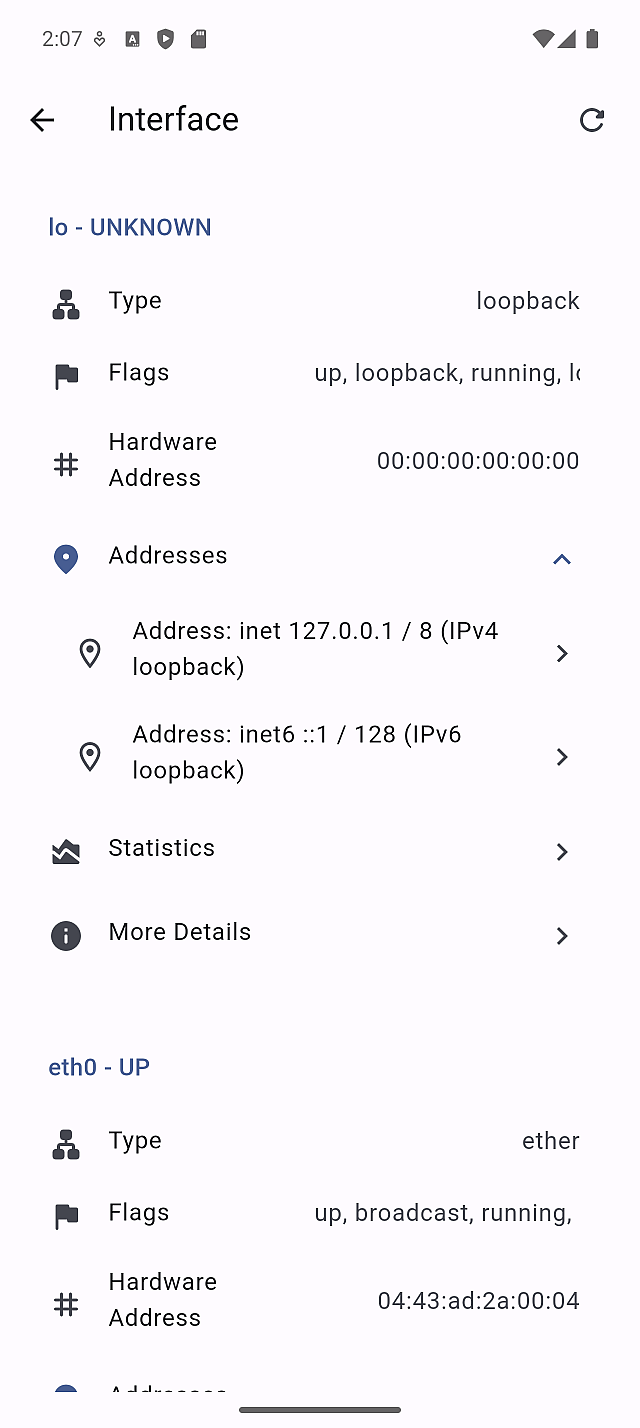
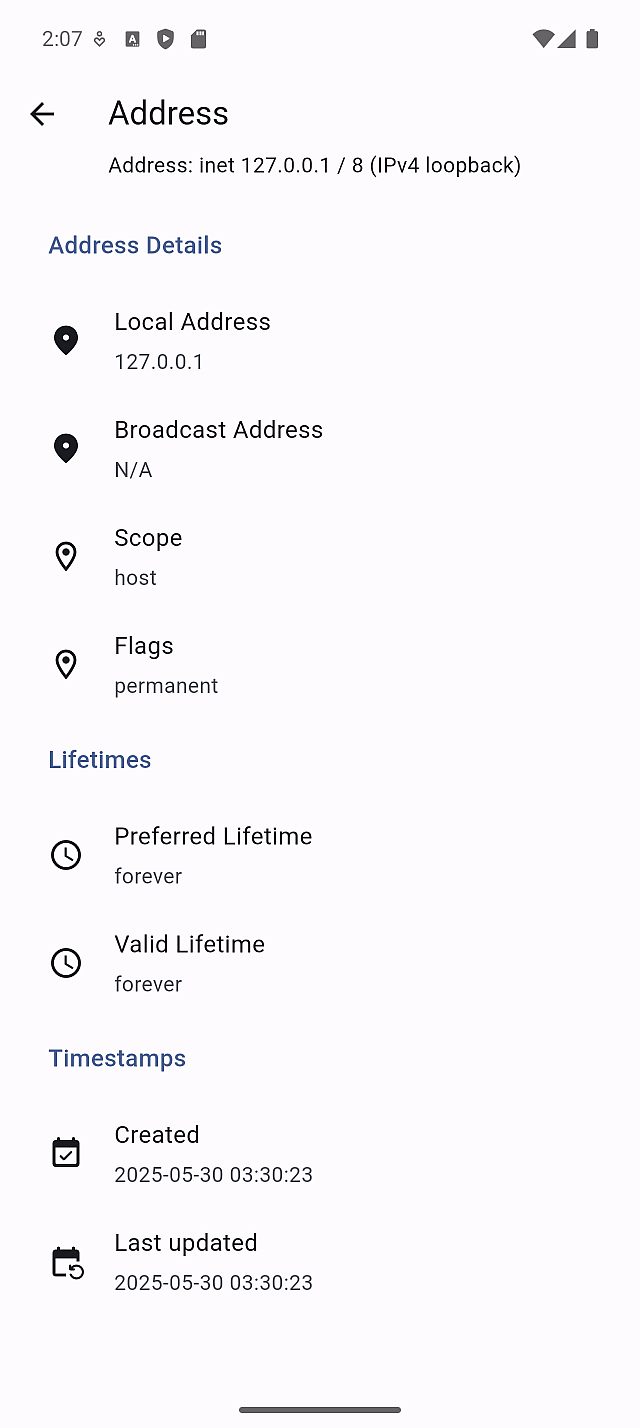
Review address details to confirm IP configuration.
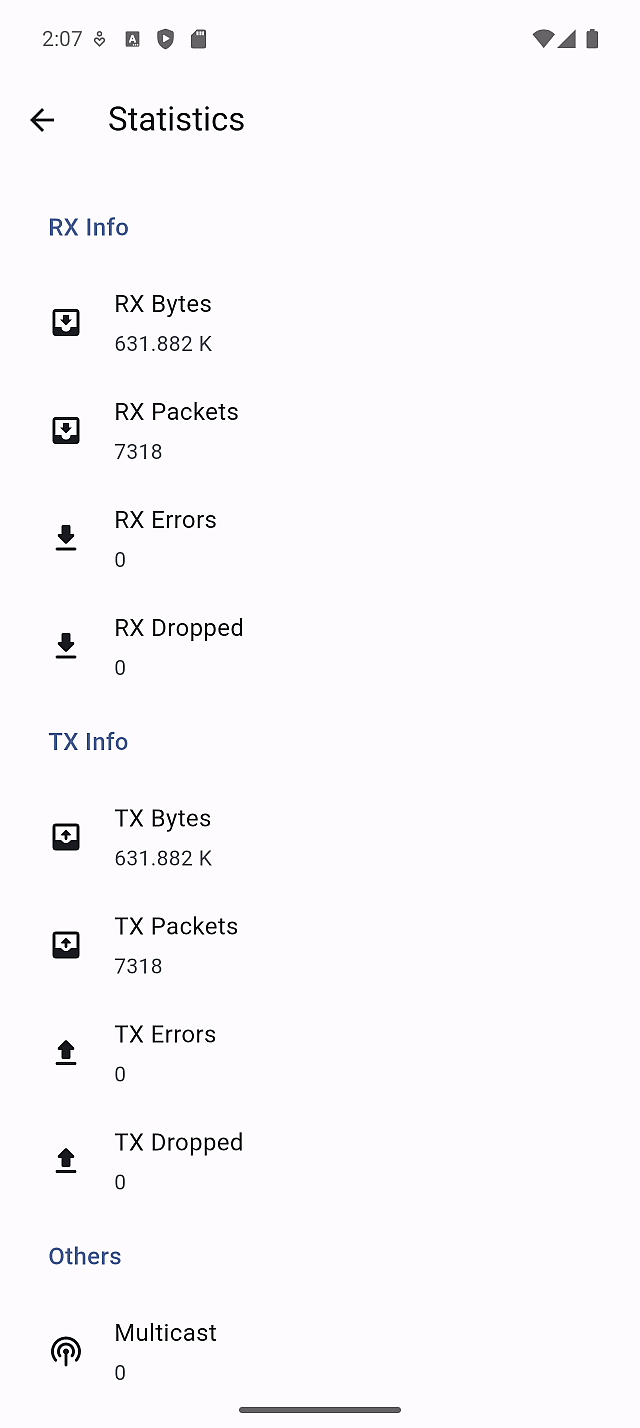
Statistics help verify whether traffic is flowing as expected.
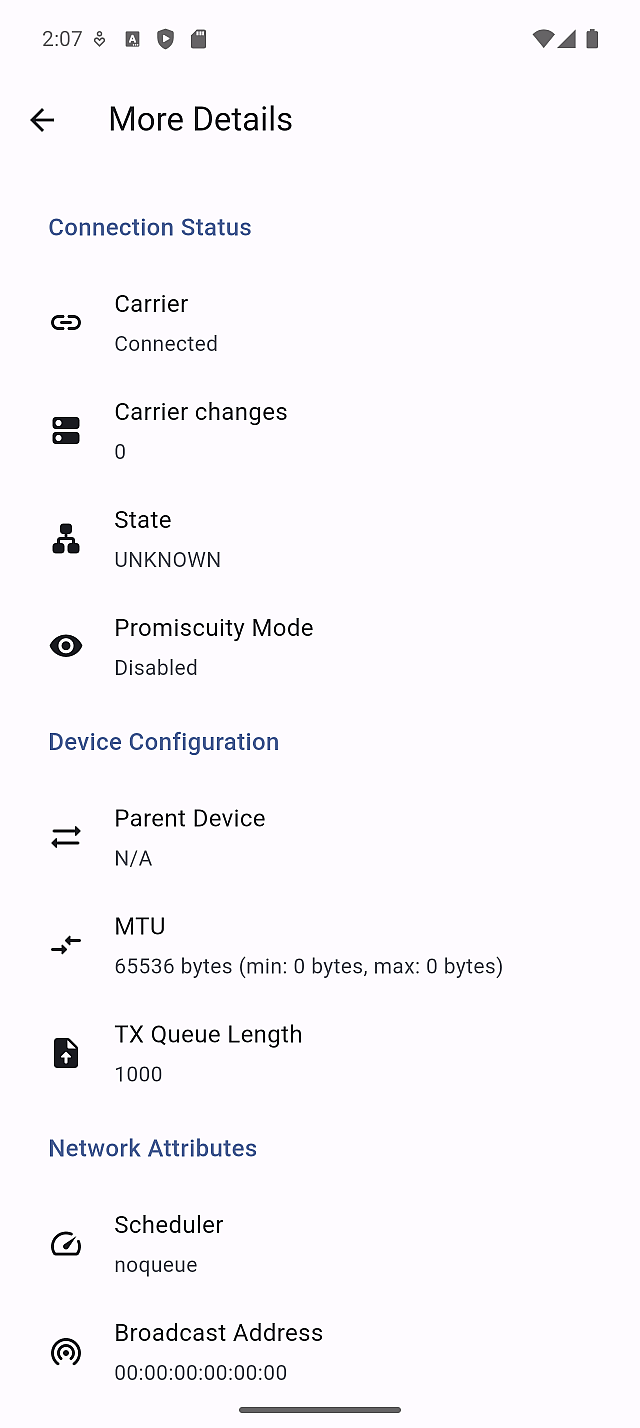
Use detailed views only when troubleshooting connectivity issues.
Network
Network displays devices discovered on your local network.
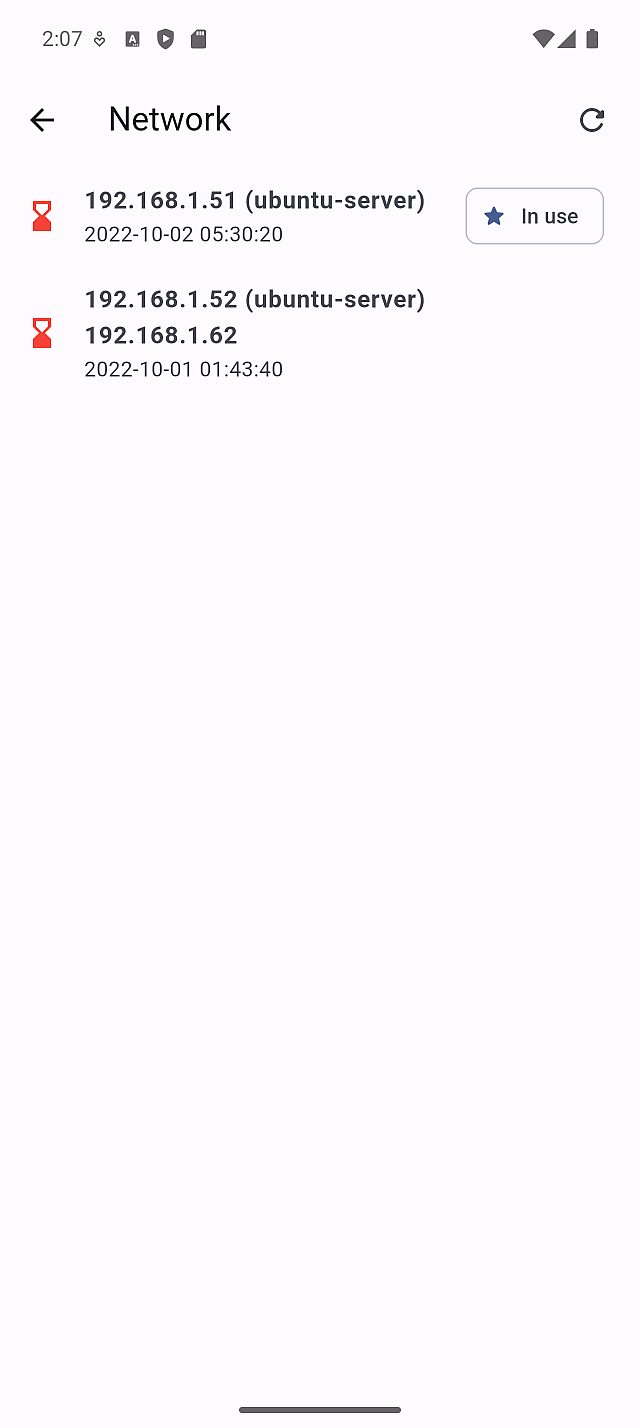
Tap a device to inspect details and activity.
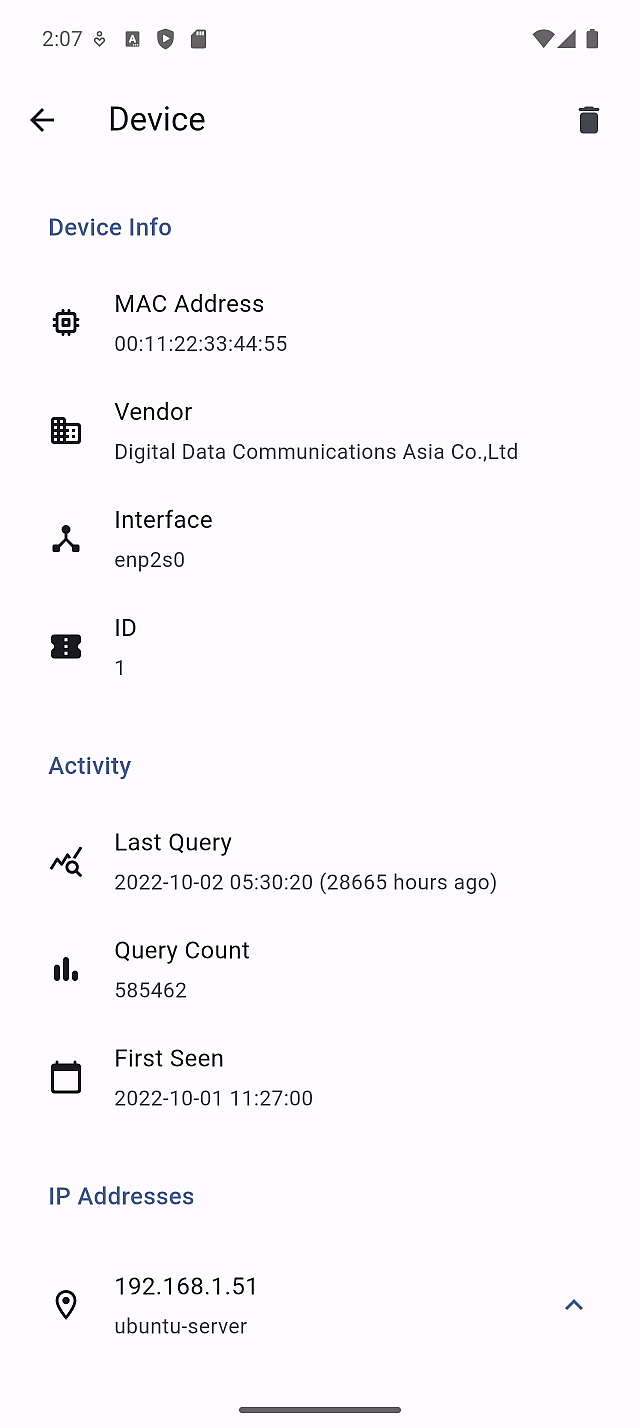
Use this view to identify unknown devices or confirm network visibility.
Common real-world scenarios
-
A device behaves differently from others Use Groups & Clients to confirm the client identity and adjust its group assignment.
-
Too many false positives after adding a list Open Adlists, temporarily disable the list, and update gravity to confirm the impact.
-
DNS responses look incorrect or stale Use Restart DNS resolver from Advanced Setup to refresh the service.
-
Network layout changed Flush the network table so Pi-hole can rebuild device mappings.
Important notes and limits
Server Settings always apply to the currently selected Pi-hole server. If multiple servers are configured in the app, double-check Server Info before making changes.
Some features are available only on Pi-hole v6. If an option does not appear, this usually reflects the server’s version or configuration rather than an app error.
Certain actions, such as restarting DNS or flushing logs, may briefly affect DNS service or remove diagnostic data. Avoid using them during peak usage or active investigations.
Pi-hole concepts used on this screen
A server setting changes how Pi-hole processes DNS requests for all connected clients.
- Adlists define which external blocklists are used
- Groups control which policies apply to which clients
- Gravity is the compiled blocking database built from adlists
- FTL is Pi-hole’s DNS engine responsible for query handling
Understanding these concepts helps ensure that server-level changes are intentional, traceable, and reversible when needed.