🛡️ Domains
What you can do on this screen
The Domains screen is where you explicitly allow or block domains in Pi-hole. You mainly use it to:
- Allow a domain that should not be blocked
- Block a domain you do not want on your network
- Review, edit, disable, or remove existing rules
This screen is typically used after you have confirmed behavior in Logs and want to apply a persistent rule.
View and switch between allow and block rules
At the top of the screen, you see two tabs that separate domain rules by type:
- Whitelist (allowlist) - domains that are always allowed
- Blacklist (denylist) - domains that are always blocked
Tap a tab to switch the list below it. The list immediately updates to show only rules of the selected type.
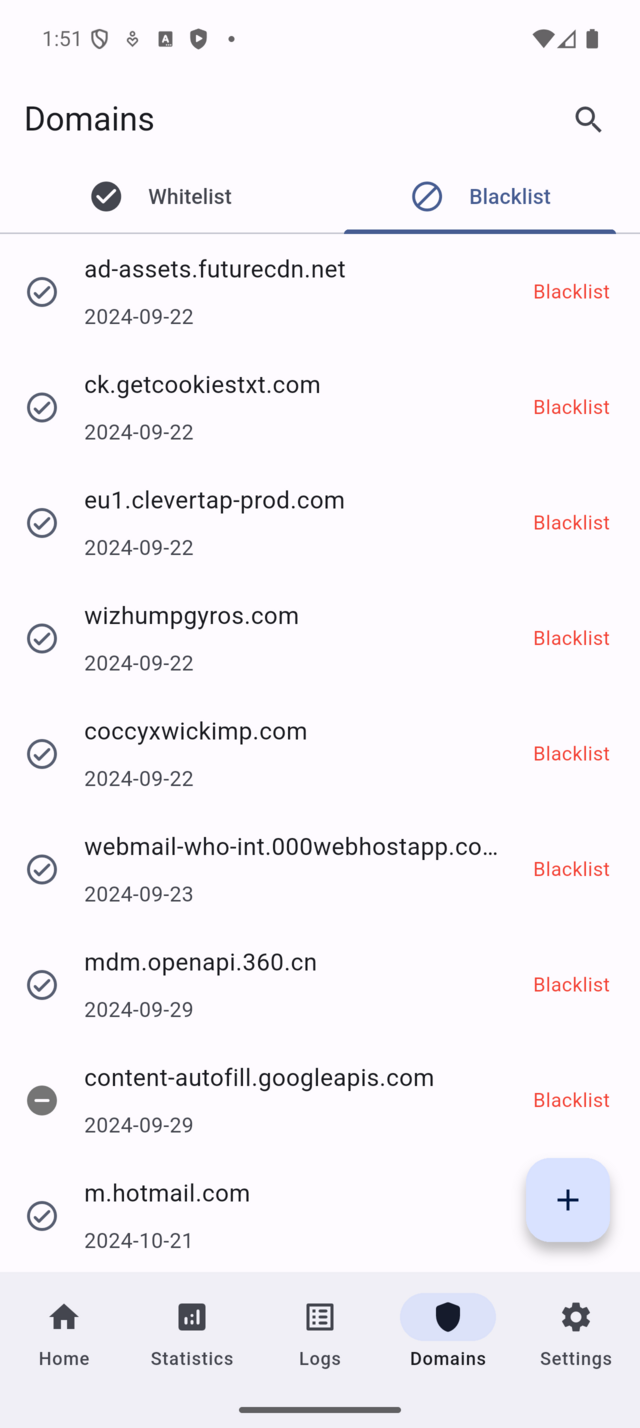
Each row represents a single domain rule. Use this list to quickly confirm whether a domain is already allowed or blocked before adding a new rule.
Tap a row to open its detail view.
Add a new domain rule
To create a new rule, tap the floating + button in the bottom-right corner.
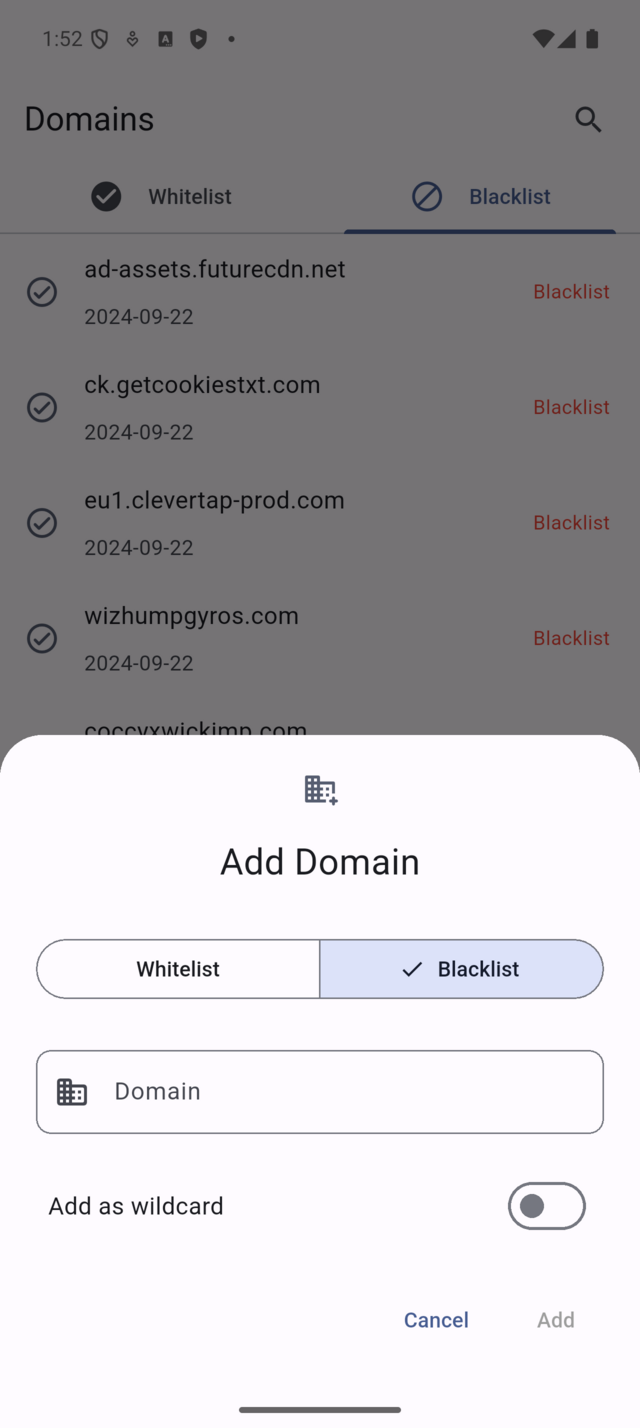
In the add dialog:
- Choose whether the rule is Whitelist or Blacklist
- Enter the domain name
- (Optional) Enable Add as wildcard to also match subdomains
- Tap Add to save
The list refreshes automatically after the rule is created.
Add a rule when a website or app consistently breaks due to blocking, or when you want to permanently block a known unwanted domain.
Avoid using wildcard domains unless you intentionally want to match all subdomains, as this can affect more traffic than expected.
Review and manage an existing rule
Tap any domain in the list to open its detail screen.
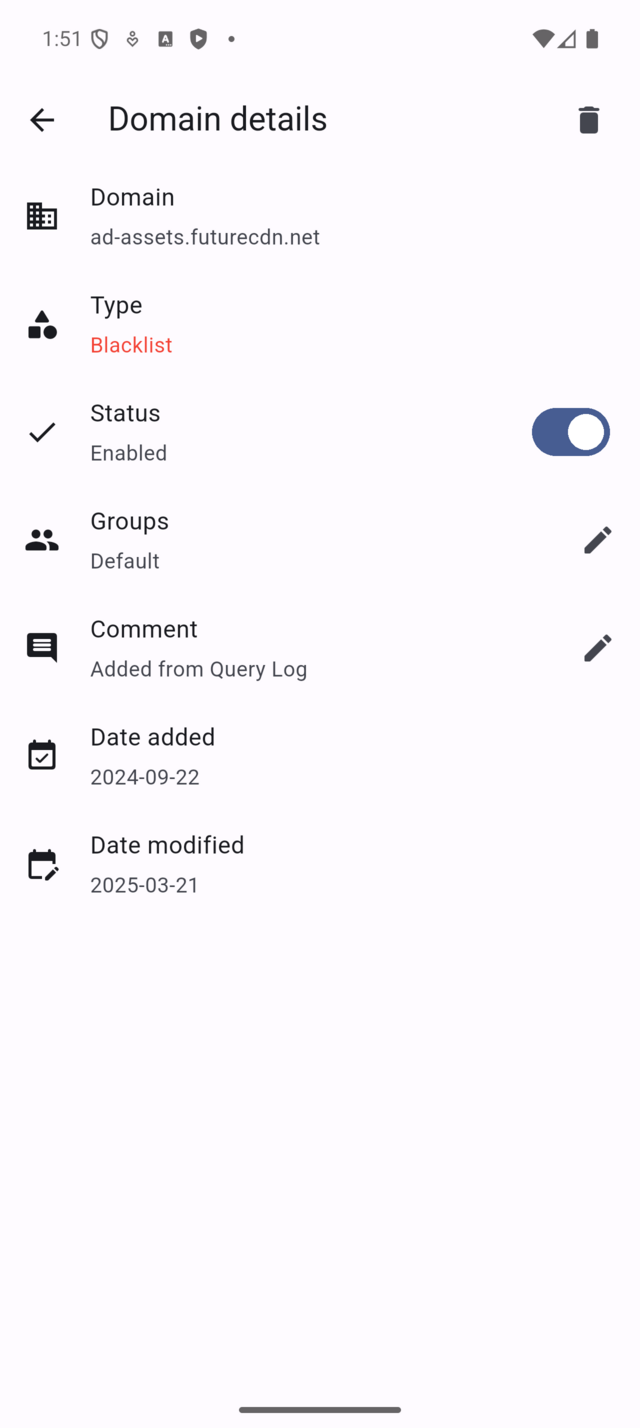
On this screen, you can:
- Review the domain and its rule type
- Temporarily disable the rule using the switch
- Permanently remove the rule using the delete action
Disabling a rule keeps it in Pi-hole but stops it from applying. This is useful when testing whether a rule is still needed.
If you are connected to Pi-hole v5, the app does not offer a per-rule enable/disable switch. Use the Pi-hole web interface if you need to disable a rule without deleting it.
Deleting a rule removes it entirely and cannot be undone. Only delete rules you are sure you no longer need.
Typical ways to use Domains
-
A site is broken Confirm the blocked domain in Logs, then add it to the Whitelist.
-
You want to block a specific service Add the domain to the Blacklist to stop it consistently.
-
Cleaning up old rules Review the list and disable rules before deleting them permanently.
Important notes and limits
- Domain rules apply only to the currently selected server.
- Changes may take a short time to affect new queries.
- Overusing wildcard rules can cause unintended blocking or allowing.
Pi-hole concepts used on this screen
A domain rule explicitly overrides Pi-hole’s default blocking behavior. Whitelist rules always allow matching domains, while Blacklist rules always block them. These rules are applied before gravity-based blocking and affect future DNS queries immediately.