🧩 Android Home Widget
Overview
The Android Home Widget lets you control and monitor Pi-hole Client without opening the app. It is designed for quick checks and quick actions from your Home screen.
Use it when you want to:
- Confirm whether blocking is currently ON or OFF
- Toggle blocking quickly when something breaks
- Glance at key statistics at any time
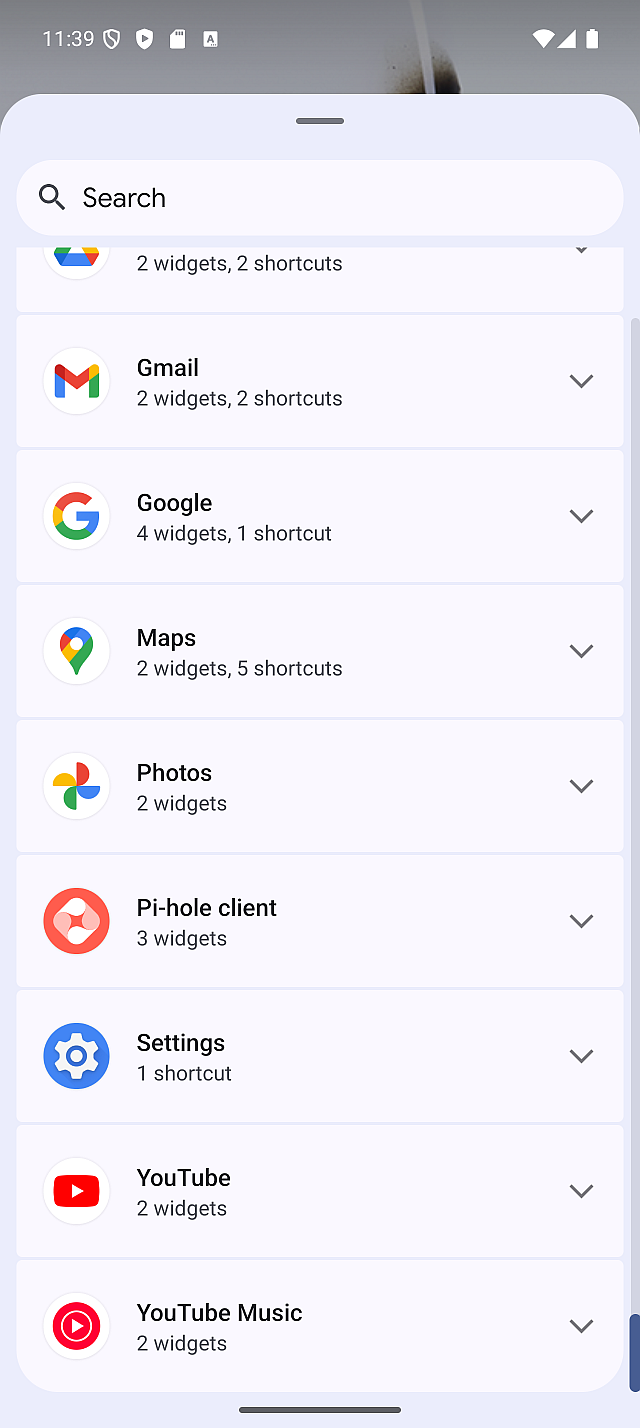
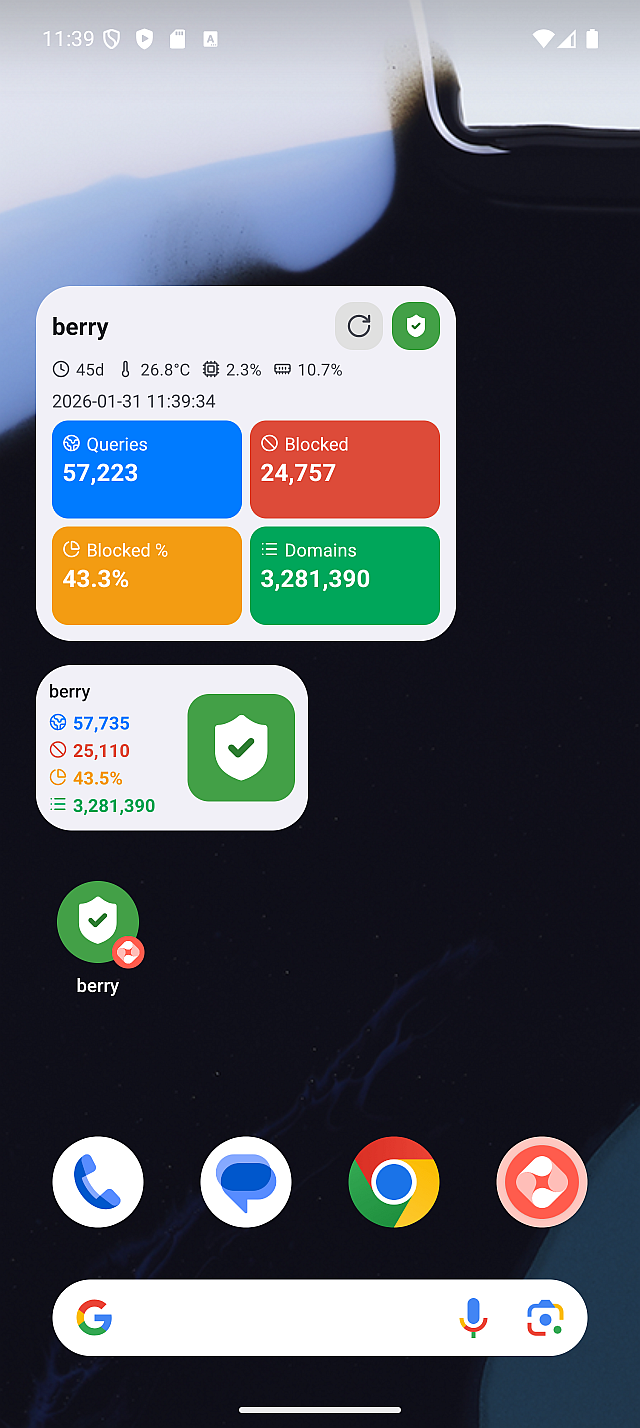
What you can do with the widget
- Check status: see whether Pi-hole is blocking, offline, or needs attention
- Blocking ON / OFF: toggle blocking from the shield button
- View statistics: confirm Total / Blocked / % / Domains at a glance
- Manual refresh: update the widget when the information looks outdated
Adding the widget to your Home screen
The exact steps vary slightly by device, but the general flow is the same:
- Long-press an empty area on your Home screen.
- Tap Widgets.
- Find Pi-hole Client in the widget list.
- Drag Pi-hole Home Widget onto your Home screen.
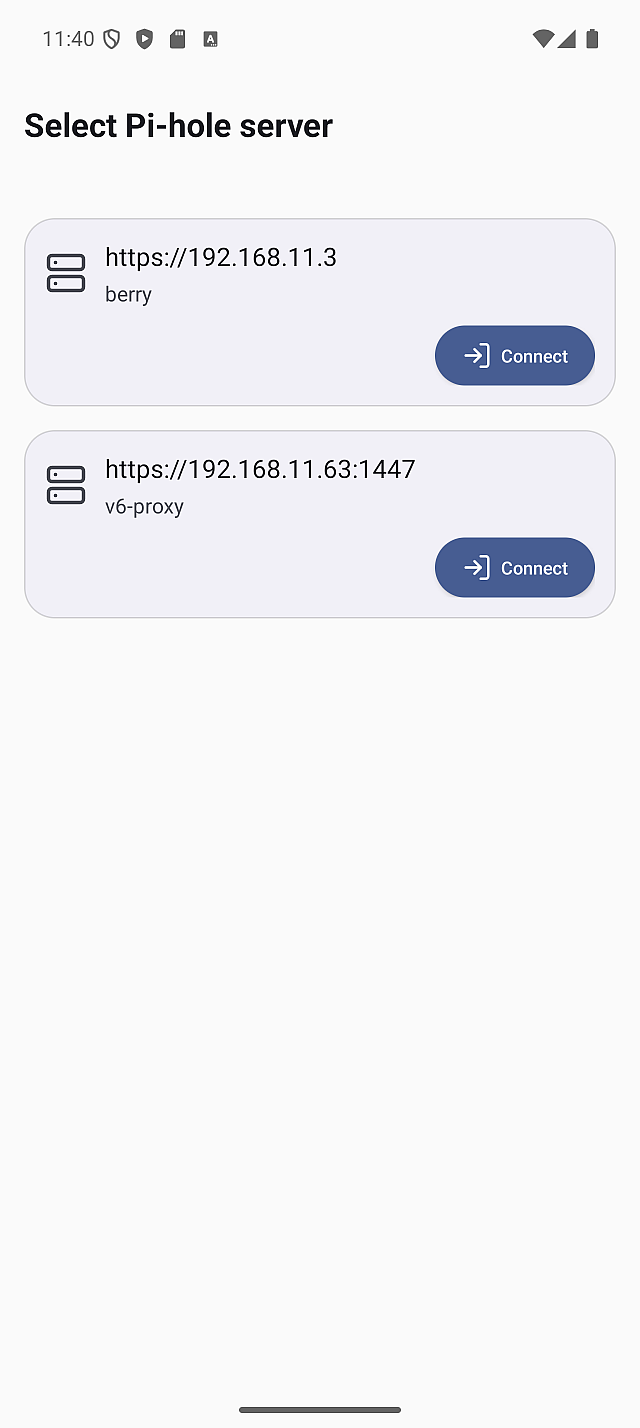
First time setup: select a server
When you add the widget for the first time, you must select which server the widget controls. After selection, the widget is created and starts showing data for that server.
If a server is shown as unavailable, it means the widget cannot work with that server version. In that case, select a different server or use the in-app Home screen instead.
If the server selection screen shows an empty list, open the app once and confirm you have at least one server configured.
Widget layout and elements
The widget is built around “read first, then act”. Start by checking the server name and the status, then decide whether to refresh or toggle blocking.
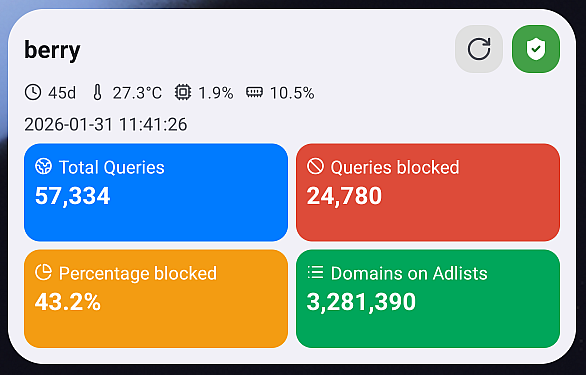
Server name
Shows which Pi-hole server this widget is connected to. This is important if you manage multiple Pi-hole instances.
Status (Blocking ON / OFF / Error / Auth required)
The widget shows its status through the shield icon and whether actions are enabled. Use it to decide whether you can toggle right now or should open the app first.
- Blocking ON: Pi-hole is active and filtering queries
- Blocking OFF: filtering is paused/disabled
- Error: the widget cannot update (for example, offline or server unreachable)
- Auth required: the widget needs you to open the app before it can refresh again
Statistics (Total / Blocked / % / Domains)
These values help you understand current activity at a glance:
- Total: total DNS queries handled
- Blocked: queries blocked by Pi-hole
- Blocked %: percentage of blocked queries
- Domains: domains on adlists (the size of your blocklists)
Updated time
Shows when the widget last refreshed. Use this to judge whether the displayed data is still current enough for your situation.
Toggle button (Shield)
When available, tap the shield to toggle blocking ON / OFF for the widget's selected server. If the widget shows Error or Auth required, toggling is disabled.
Refresh button
On medium and larger widget sizes, a refresh icon appears next to the shield. Use it when you need the latest state immediately.
Widget sizes and behavior
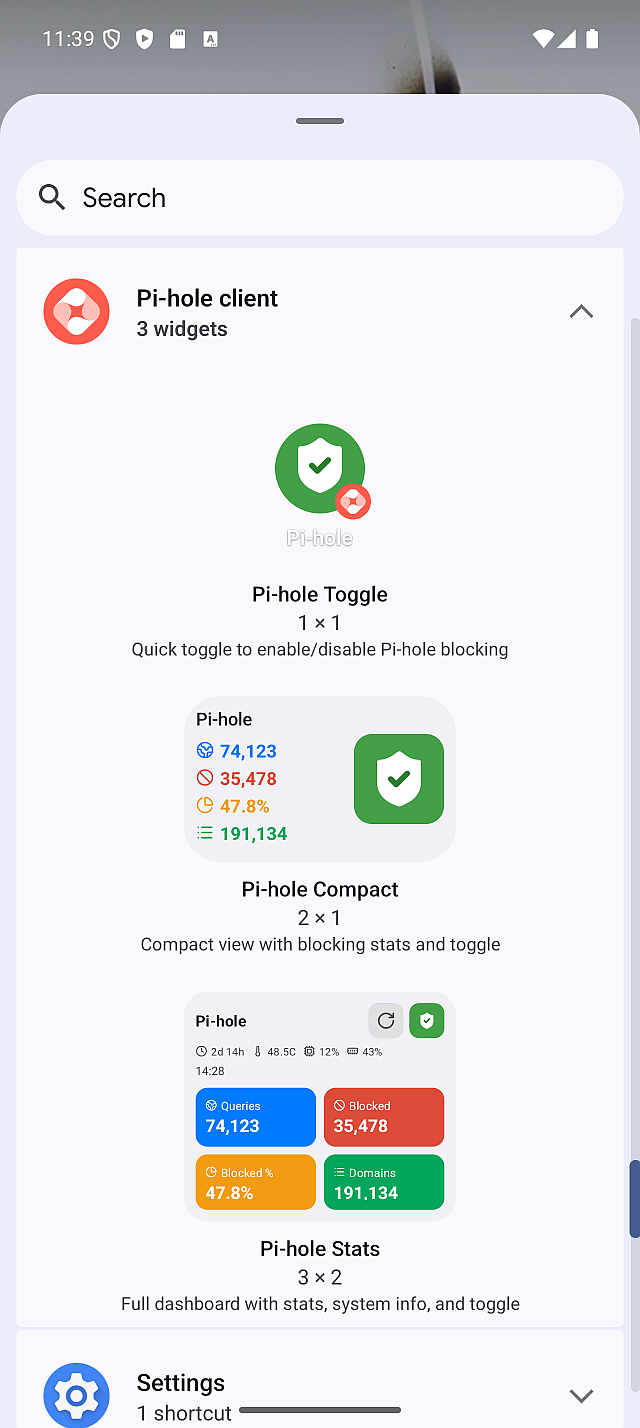
The widget comes in three sizes to fit your Home screen:
Stats (Large)
The most detailed view with full statistics, server name, and all actions visible.
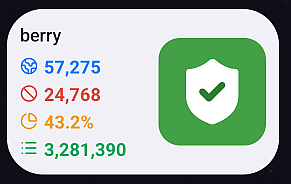
Compact (Medium)
A balanced view showing key stats and toggle/refresh actions in a smaller footprint.
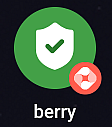
Toggle (Small)
Minimal widget focused on the toggle action. Shows status and blocking control only.
Updating and refresh behavior
Widgets refresh more conservatively than in-app screens. This is normal and helps reduce battery usage.
- Automatic refresh: due to Android OS limitations, the widget updates approximately every 30 minutes in the background
- Manual refresh: use the refresh action when you need the latest state right now
If your device is in battery saver mode or background activity is restricted, updates may be less frequent.
When the widget shows offline or error state
The widget may display an offline or error state in several situations:
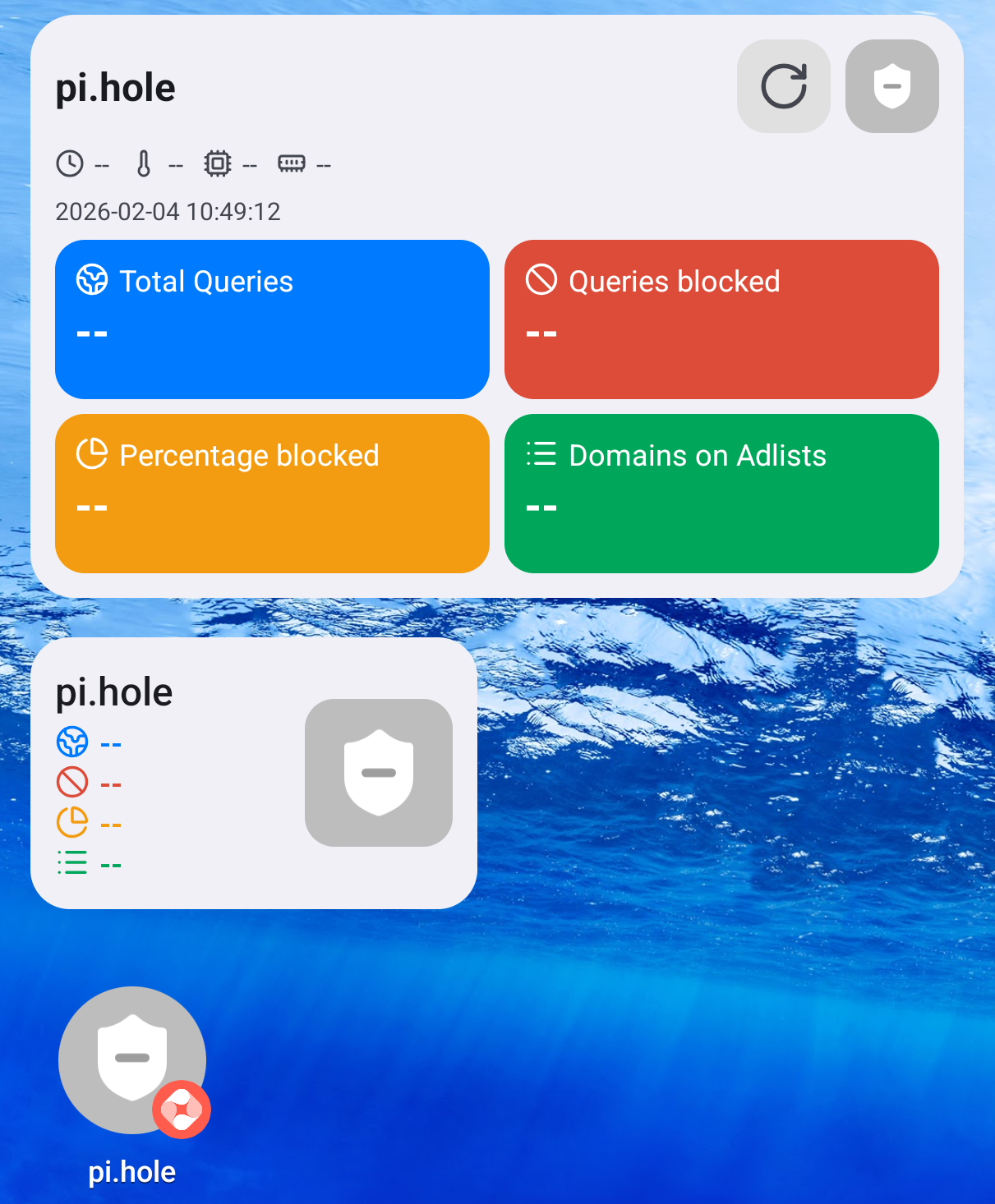
Common causes
- Session expired (SID expired): Pi-hole v6 uses session-based authentication. The session ID (SID) expires after a period of inactivity, requiring re-authentication.
- Device screen off for a long time: When your device has been idle or the screen has been off for an extended period, the widget's background connection may be lost.
- Pi-hole server unreachable: The server may be offline, or network connectivity between your device and the Pi-hole server may be interrupted.
How to recover
Tap the widget to launch the app and reconnect.
When you tap the widget, the app opens and automatically connects to the server associated with that widget. Once the app establishes a connection and refreshes authentication, the widget will resume normal operation.
After the app reconnects successfully, you can return to your Home screen and the widget will update with the latest status.
Tips and limitations
- Offline or unreachable server: the widget may show Error and stop updating until connectivity returns
- Server Compatibility: the widget currently supports Pi-hole v6 servers; Pi-hole v5 servers may not be selectable
- What the widget cannot do: advanced settings, detailed logs, and list management still require opening the app