🚀 Getting Started
Follow these steps to connect the app to your Pi-hole and start managing it from your phone.
1. Install the app
You can get Pi-hole Client in one of two ways:
- Google Play — easiest way to install and receive updates
- GitHub Releases — for manual APK installation or testing newer builds
For Linux or Windows users, see the Installation Guide for detailed setup instructions and dependency notes.
2. Prepare your Pi-hole
Before connecting:
-
Make sure your Pi-hole web interface is reachable from your phone (same LAN, or via VPN like WireGuard / Tailscale).
-
Confirm your Pi-hole version is v6:
pihole -v
For Pi-hole v6
- You'll need the Web UI password you set during installation.
For Pi-hole v5
- Find your API key in
Settings → API/Web interface → Show API token. See Getting the API token (v5 only) for details.
3. Add your server in the app
Open Settings → App Settings → Servers, then tap + to create a new connection.
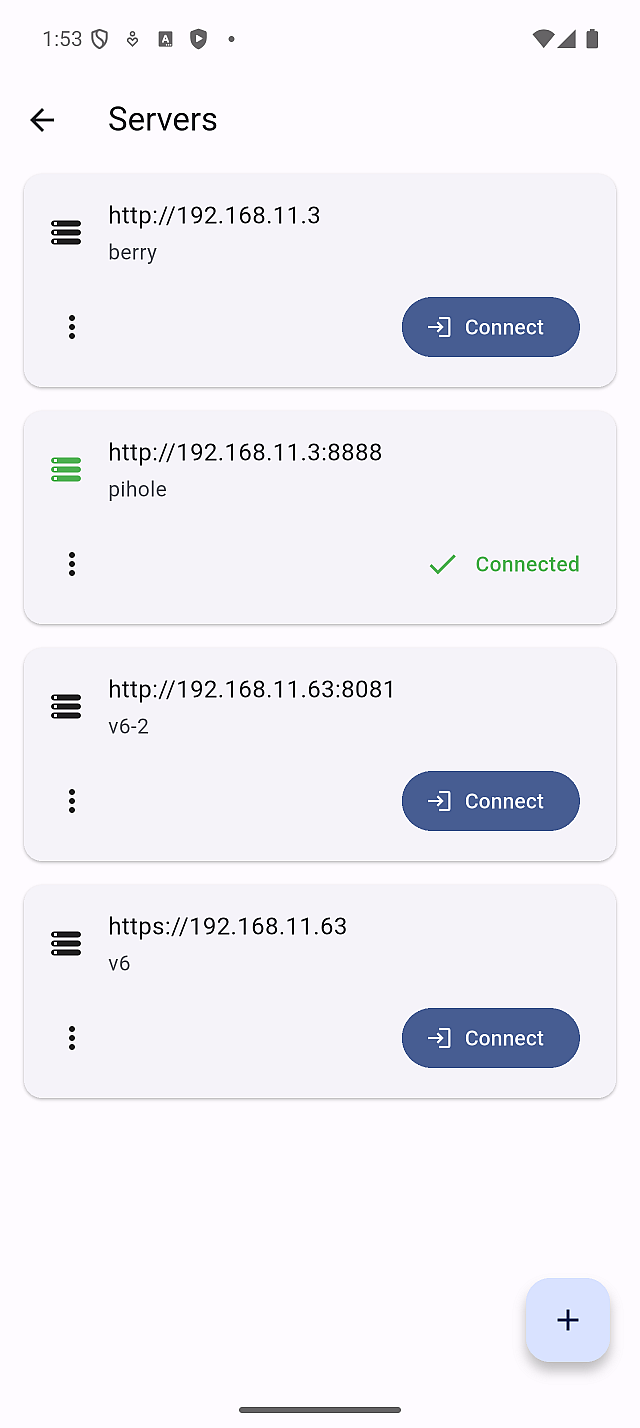
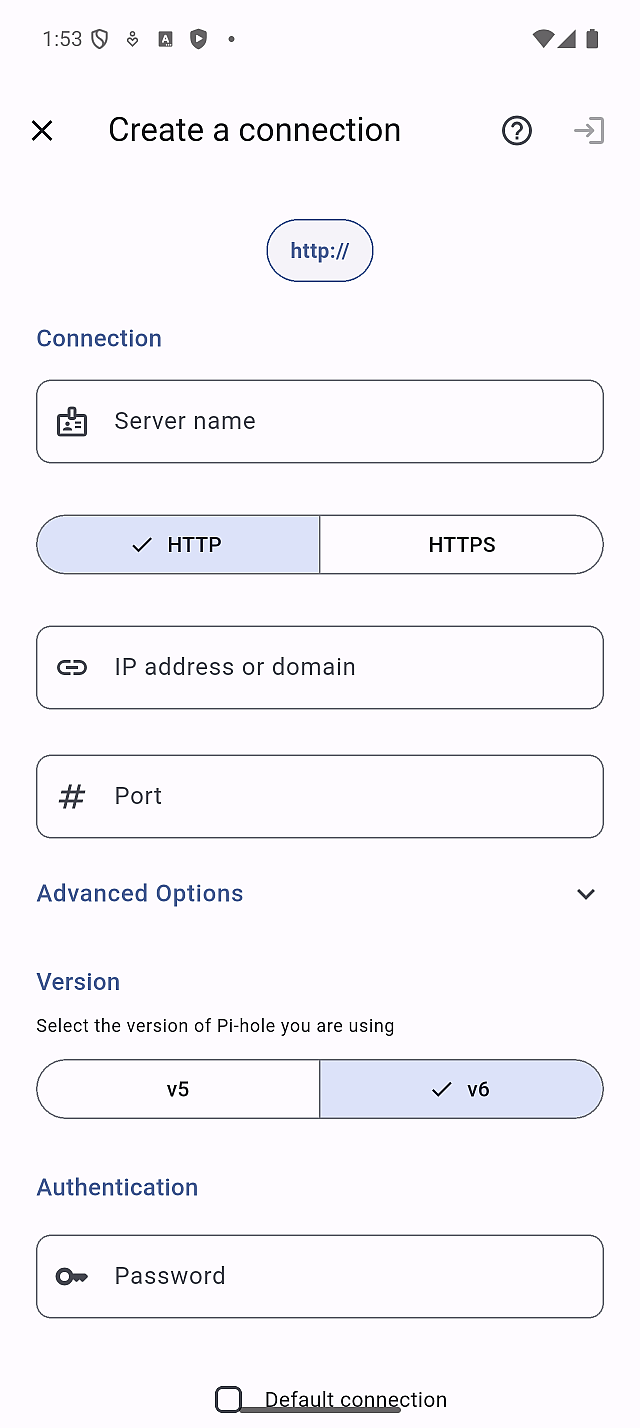
Fill in the connection details
- Server name: a label shown in the app (for example,
Home Pi-hole) - HTTP / HTTPS:
- Use HTTP for a local network setup
- Use HTTPS if your Pi-hole is exposed through a reverse proxy or has TLS
- Address: your Pi-hole hostname or IP (for example,
pi.holeor192.168.1.10) - Port (optional): leave empty for the default (
80for HTTP,443for HTTPS)
Advanced options (only if needed)
- Subroute (optional): use this only when Pi-hole is served under a path by a
reverse proxy (example:
/pihole) - Allow untrusted certificates: only available on HTTPS; enable it only if you intentionally use a self-signed certificate
Select your Pi-hole version and authentication
- Pi-hole v6 (recommended): enter your Web UI password
- Pi-hole v5: enter your API token (you can also scan it via QR code on mobile)
Tap Connect to verify the details and save the server.
If connection fails, double-check that the web interface is reachable from your phone (LAN/VPN), and that the version and authentication match your Pi-hole. For HTTPS, self-signed certificates, or reverse-proxy setups (subroutes), see Connecting to Your Pi-hole.
See also: